Working with external records
✓ EnergyID for Business ★ PreviewWith the External records feature, your organization (such as an energy supplier, citizen cooperative, or energy community) can support customers or members outside your own workspace with monitoring and additional services.

The principle of 'external records'
An external record always remains the property of the user. It is not moved to your Workspace; instead, a virtual copy (mirror) is linked to your organization.
The user gives consent through specific permissions, so your organization can view and analyze the record as part of the service provided.
When linking an external record, all features of EnergieID Premium are automatically activated. More information about how EnergieID Premium works for your end users.
Permissions and access
As a service provider, you decide which information to request from the owner. Depending on the features you activate, the user receives a request to grant the following permissions:
- View your profile data Required
Your profile data includes your name, email address, photo, and preferred language. This is used by [Organization name] for identification purposes.
- Use your essential record data Optional
Only data from your record that is necessary for the service is shared with [Organization name].
- Access to your record for help and support Optional
Gives employees of [Organization name] the guest user role to view and edit your record.
Pay attention when setting scopes
In addition to the required profile data, you as an administrator decide which extra permissions to request. The end user must always accept this selection in full to complete the link.
If an activated feature requires data for which permission has not yet been granted, you will receive a notification as Workspace administrator. You can then roll out new permissions to only new or also existing external records.
Customize the signup page
The signup page is the first contact moment for linking to your service. A clear and professional setup immediately makes it clear what users are consenting to and which data is being shared. Under the configuration of External records, you can therefore set the following components:
- Name of the service provider: By default, the name of your Workspace is used, but you can provide a specific public name here that will be shown in all permission texts.
- Signup page URL: You can freely choose the signup page slug, so the link clearly matches your organization or campaign.
- Large logo: Upload a high-resolution logo that appears prominently at the top of the signup page.
- Notice: Add a short explanation of which data is shared during signup and what it is used for.
- Privacy policy: Add a link to the privacy policy on your own website.
- More info about the link: Add a link to a landing page where you further explain the benefits of the collaboration and the services offered.
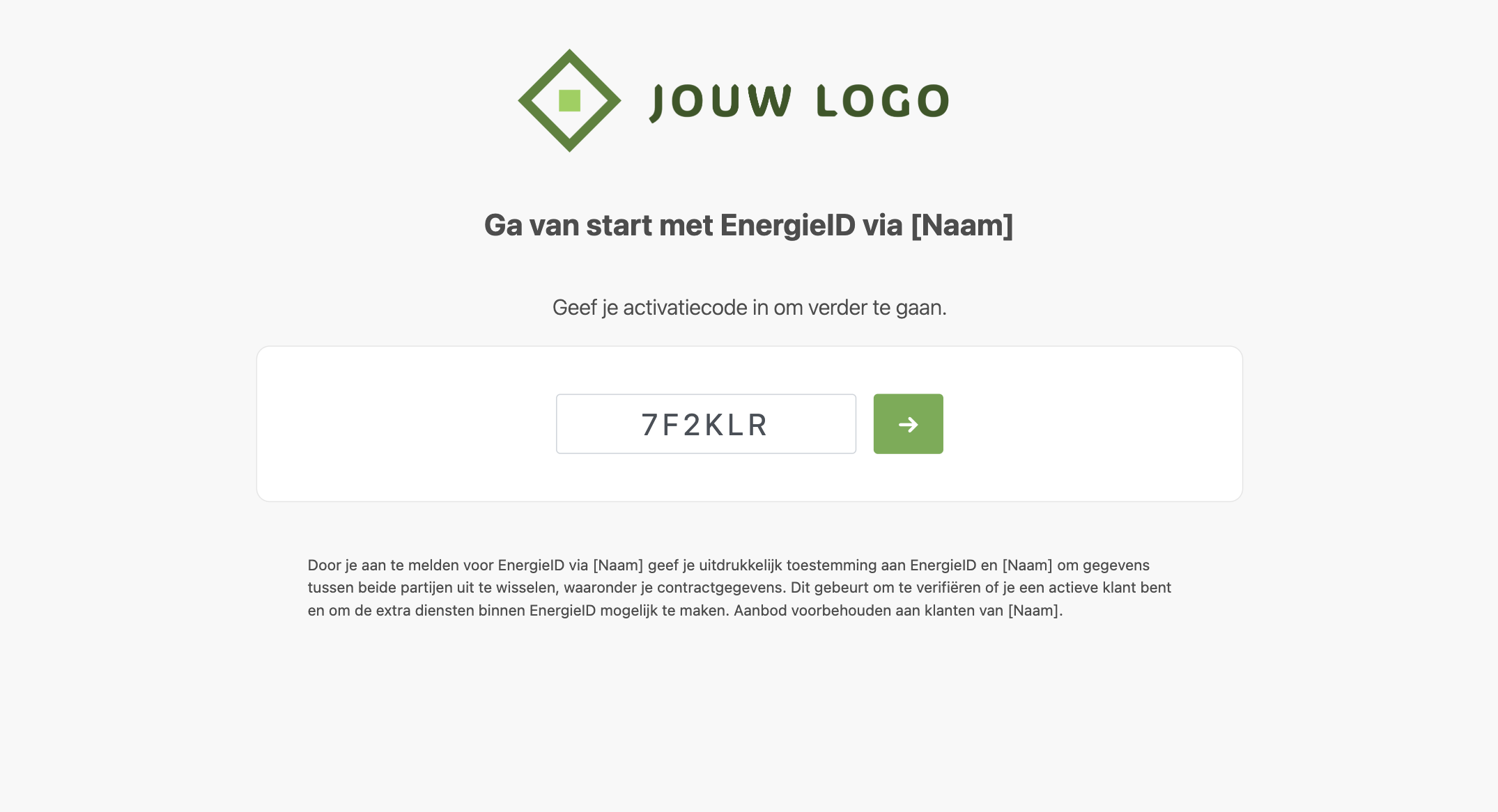
Pro tip: Pre-filled activation codes
Do you want to simplify the signup process for your users even more? You can automatically pre-fill the activation code on the signup page by adding the query string code=YOURCODE to the URL. For example:
https://app.energyid.eu/sign-up/your-campaign-name?code=7F2KLR
How do you activate this feature?
- Go to the Configuration module in your Workspace.
- Activate the External records feature.

- Set the desired signup method (e.g., via a Shared code).
- Choose which permissions will be requested from the user.
- Customize your signup page by adding your own name, logo, and disclaimer.