Manage Workspace users and permissions
✓ EnergyID for BusinessWorkspace users collaborate across the entire Workspace. Their role determines which actions they can perform in internal records and who can manage access rights and Workspace settings.
View Workspace users
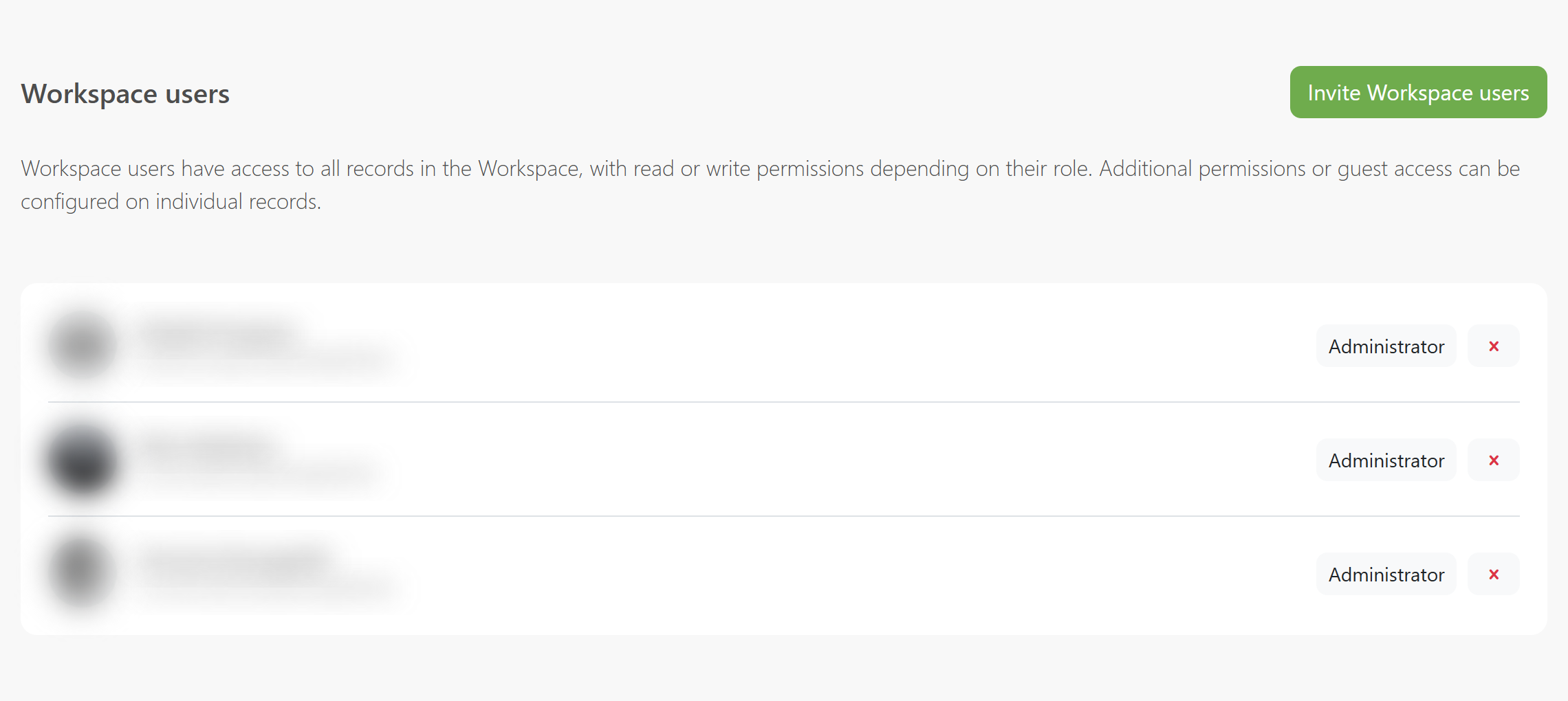
Open the Workspace and choose Users > Workspace users. This page lists all current users, their roles, and invitations that are still pending confirmation.
Roles and permissions
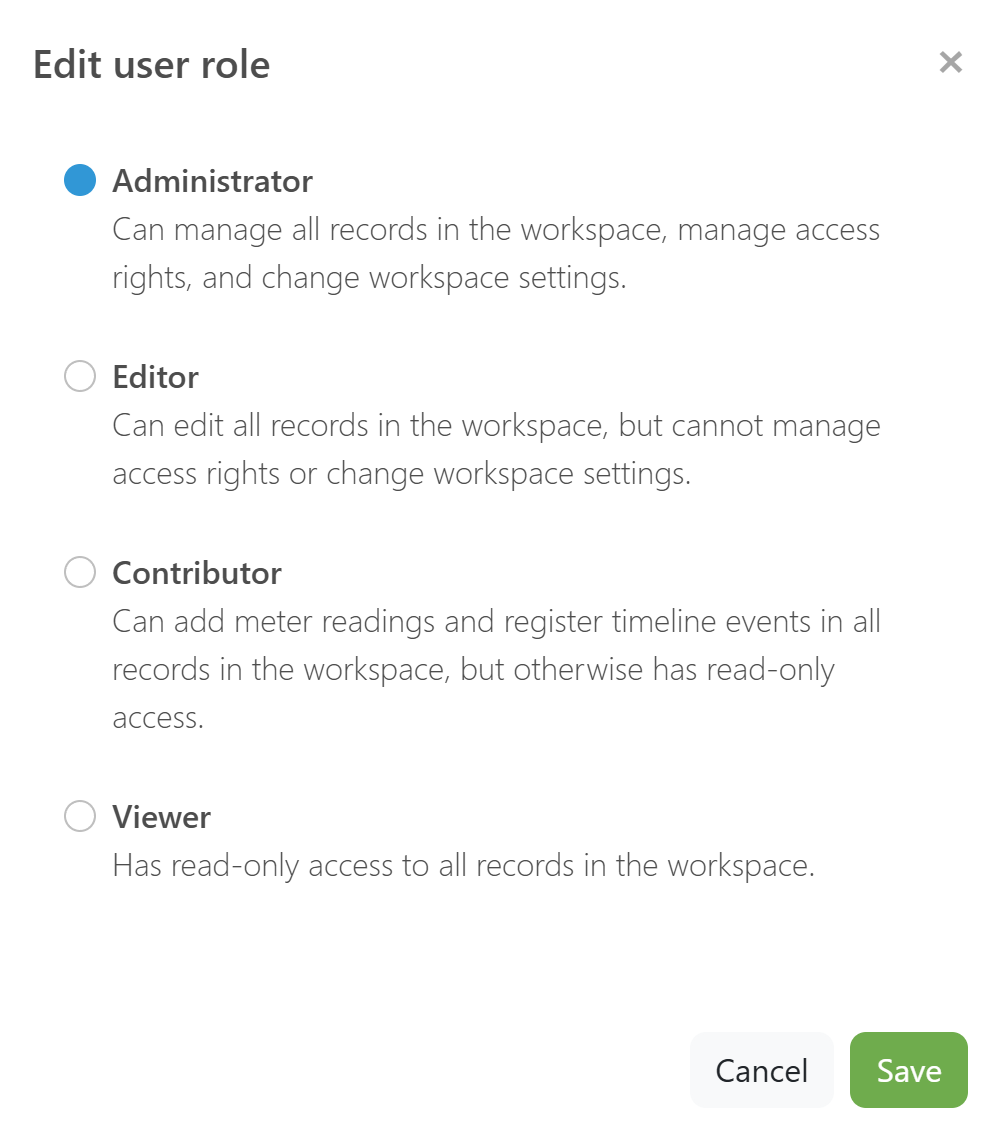
A Workspace role applies to all internal records in the Workspace by default:
- Administrator: can manage all records, access rights, and Workspace settings.
- Editor: can edit all records, but cannot manage access rights or change Workspace settings.
- Contributor: can add meter readings and register timeline events in all records, but otherwise has read-only access.
- Viewer: has read-only access to all records.
Click the current role next to a user to view the role descriptions or select a different role.
Important: at least one Administrator must remain in the Workspace. You cannot change the rights of the last Administrator or remove that user.
Access to external records
For an external record, the external user remains the owner. A Workspace role therefore does not automatically grant access to that record. The record owner must explicitly allow access for help and support before Workspace users can open or edit the external record.
Read more about linking, permissions, and ownership in Working with external records.
Invite a Workspace user
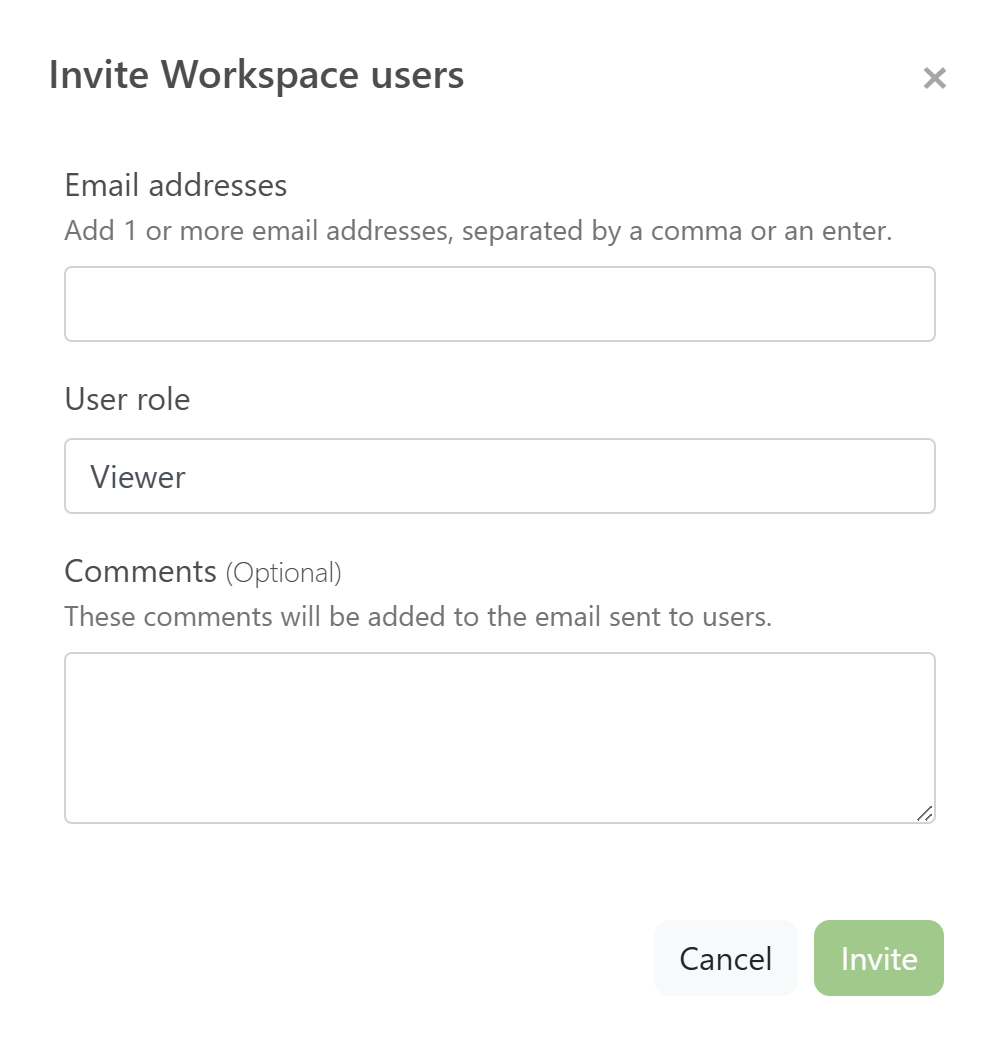
- Click Invite Workspace users.
- Add one or more email addresses. Separate multiple addresses with a comma or Enter.
- Choose the appropriate role. Viewer is selected by default.
- Optionally add a comment. It will be included in the invitation email.
- Click Invite.
Change a role or remove a user
Click a user's role, select the new role, and save the change. Use the remove button next to a user to revoke access to the entire Workspace. Users can also leave the Workspace themselves.
Only need to share one or a few records? Read Share records with guest users.
Frequently asked questions
Does a Workspace user automatically have access to external records?
No. The external record owner must explicitly allow the required access. The Workspace role alone is not sufficient.
What is the difference between a Workspace user and a guest user?
A Workspace user collaborates in the Workspace and receives role-based access to its internal records. A guest user can only access the specific records that have been shared with that person separately.
Can I remove the last Administrator?
No. At least one Administrator must always remain in the Workspace.