Send messages with campaigns
✓ EnergyID for BusinessWith the Messages feature you send a message from your Workspace to the people connected to the records in your Workspace. You decide who receives it, can add an action button or a short survey, and afterwards see who received, read and answered the message. The message arrives in the inbox on the website and in the mobile app, and optionally as a push notification.
The feature is available for every Workspace, whatever the subscription. You activate it yourself in the configuration of your Workspace. Only Workspace users with the Administrator role can create, edit and send campaigns.
Who receives your message
A campaign addresses the owners and guest users of records. Without filters it reaches:
- the owners of external records who gave permission for messages;
- the guest users of those external records who subscribed to messages about that record;
- the owners of your Workspace's internal records, and the guest users of those records who subscribed to messages about that record.
So owners decide per external record whether your organisation may send messages. Guest users choose per record whether they want to receive messages, and this is off by default. Workspace users do not receive a campaign because they are a Workspace user.
Someone who falls within your selection through several records still receives only one message. The results do show every record for which that person qualified. The recipients are determined at the moment of sending, not when you save the campaign.
Read more about external records in Working with external records.
Activate the Messages feature
- Open the Workspace and go to Configuration.
- Under Messages, click Activate.
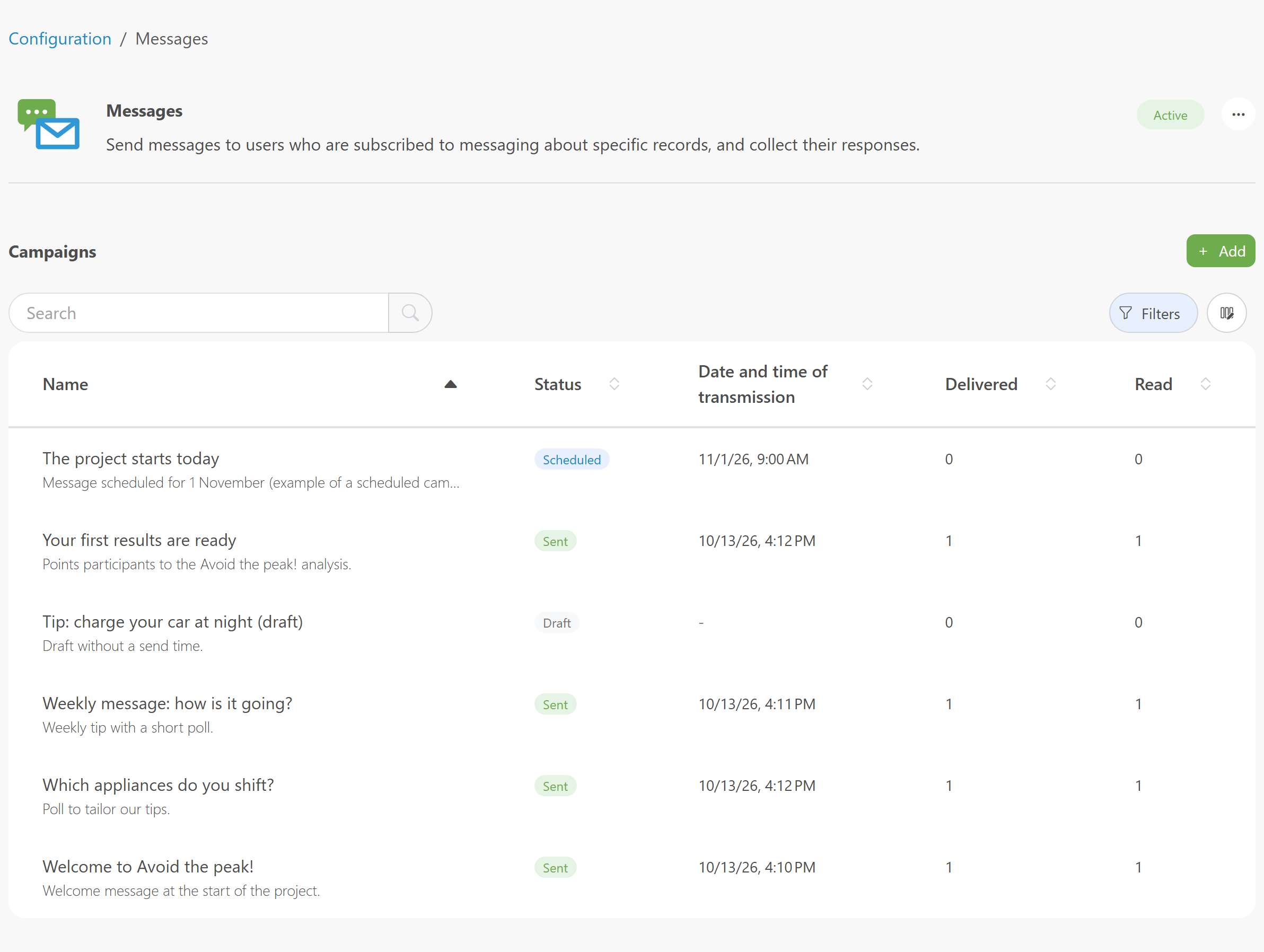
You land on the page with your campaigns. It is not in the menu on the left: you open it again later through Configuration and Messages. For each campaign you see the Name, the Status, the Date and time of transmission and how many messages were Delivered and Read. With the search bar and the Status filter you quickly find a campaign again.
Ask permission for messages
For external records, the owner of the record decides whether your organisation may send messages. You ask for this permission in the settings of the External records feature.
- Go to Configuration and open the External records feature.
- Tick Send you messages and collect your responses.
- Leave the switch Request additional permissions for existing records on if you also want to ask the owners of records that are already linked.
- Click Save.
New members see the permission when they link their record to your Workspace. Owners of existing records automatically receive a message asking them to give the permission. On the External records page, the Messaging Consent column shows per record whether the owner has given that permission. You can also filter on it.
Note: if you do not ask for this permission, a campaign reaches nobody connected to an external record, not even the guest users of that record. The warning Messaging permission is not requested then appears at the top of the Messages page. Campaigns then only reach the people connected to your Workspace's internal records.
Create a campaign
On the Messages page, click Add. You go through four steps. Use Next and Previous to move between them.
- General: give your campaign a Name and, optionally, a Description. These are for your own reporting and are not part of the visible message.
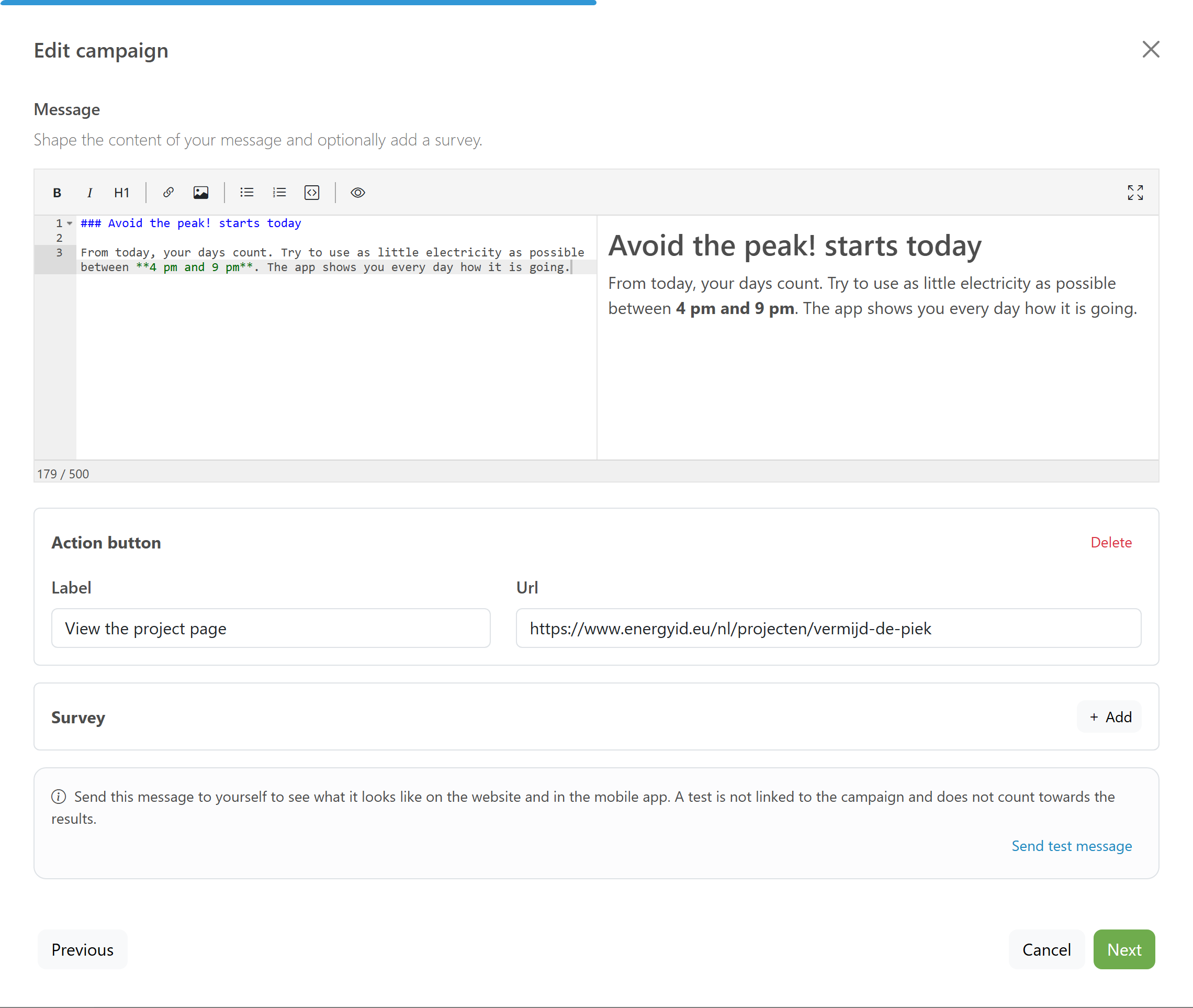
- Message: write the content of your message in the editor (at most 500 characters). Here you can also add an action button and a survey.
- Recipients: narrow down your audience with filters.
- Planning: choose whether the message is also sent as a push notification, and schedule a moment of sending or save the campaign as a draft.
Finally, click Save. The campaign then opens on its own page.
Format your message
The editor works with Markdown. With the buttons at the top you make text bold or italic and add headings, lists and links. Next to the editor you see a preview of your message.
Add an action button
An action button takes the recipient from the message to a web page, for instance a sign-up form or a page on your own website. You can add one action button.
- Under Action button, click Add.
- Enter a Label: the text on the button.
- Enter the Url the button points to. It starts with http:// or https://.
Afterwards you see how many recipients clicked through. Someone who clicks several times counts only once.
Add a survey
With a survey you ask your recipients one question and collect their answers. Under Survey, click Add, write your Question and choose the Type:
- Radio buttons: the recipient picks one answer from the options you give.
- Check boxes: the recipient picks one or more answers.
- Text field: the recipient gives their own answer.
For Radio buttons and Check boxes, add the answer options with Add answer.
Filter your recipients
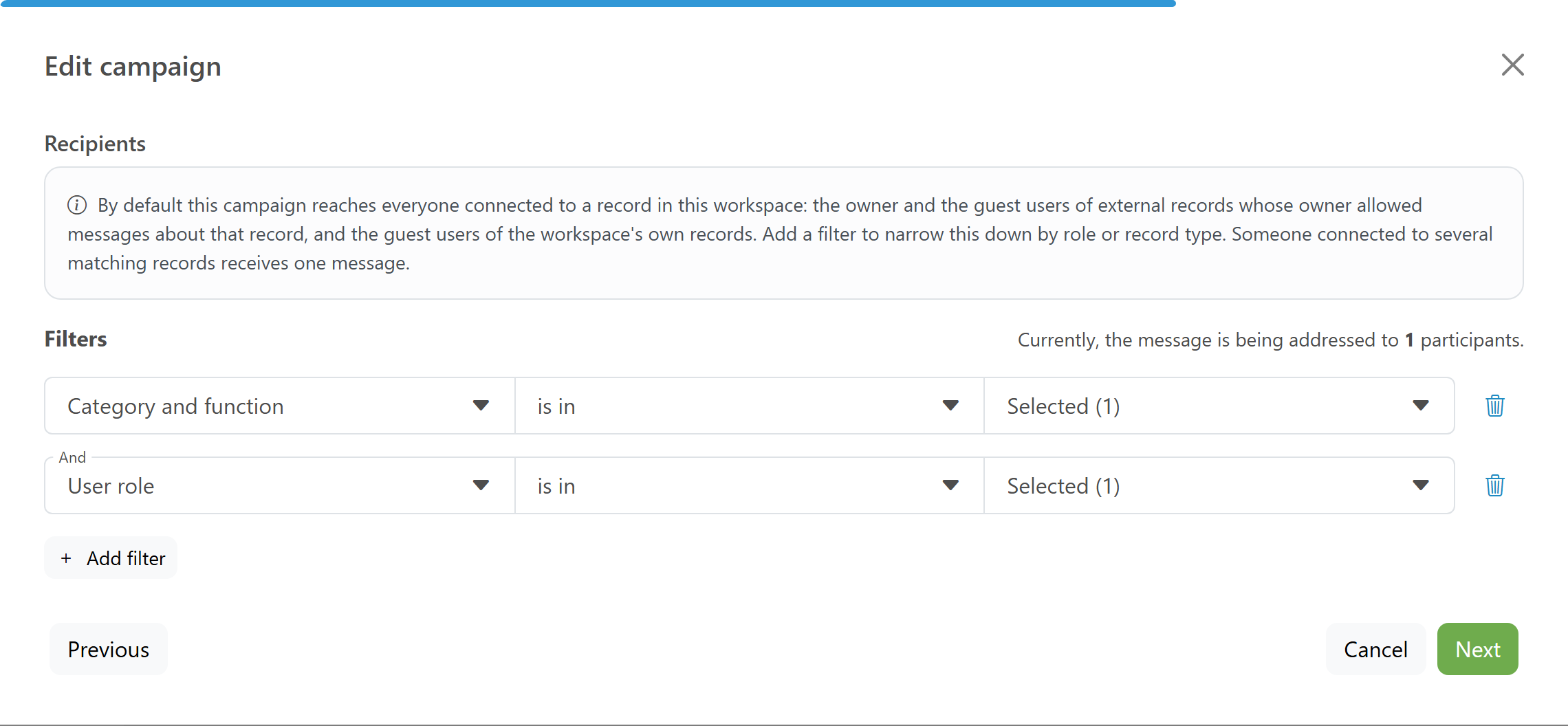
Without filters the message goes to everyone who qualifies. Each filter you add narrows the group further. Next to Filters you see how many people the message currently reaches. That number updates while you set filters.
- Click Add filter.
- Choose a property, a comparison (such as is in or is greater than) and a value.
Filters are combined with And. You can use the same property only once. The properties are grouped in three categories:
- Workspace: the Record type (Workspace record or External record), the Labels on the record (only if your Workspace has labels) and every custom field you use in your Workspace.
- Member: the recipient's Language and the User role: Owner or Guest user.
- Record: characteristics of the record itself, such as Facilities and installations, Category and function, Dwelling type, Heating on, Auxiliary heating on, Cooking on, Hot water on, Occupancy and Floor area.
A record without a value for a custom field, an occupancy or a floor area never matches a filter on that characteristic. Read more about custom fields in Custom fields.
Test your message
Before you send a campaign, it is best to send it to yourself first. That way you see what the message looks like on the website and in the mobile app.
- In the Message step, click Send test message.
- Or open an existing campaign and choose Send test message in the actions menu (the three dots) at the top right.
A test message only reaches you, without a push notification. It is not linked to the campaign and does not count in the results. From the Message step, the test uses the content as it currently is in the form. From the campaign page, it uses the saved content.
Publish and unpublish
A campaign goes through four statuses:
- Draft: the campaign is not scheduled yet and is not sent.
- Scheduled: a moment of sending has been set.
- Sending: the messages are being sent.
- Sent: all messages have gone out.
If you already schedule the campaign in the Planning step, it is Scheduled right away. If you saved it as a draft, you publish it later.
- Open the campaign and click Publish.
- Choose the Date and time of transmission. That moment is at least five minutes in the future.
- Click Publish.
EnergyID checks every quarter of an hour which campaigns are due, so sending can start up to fifteen minutes after the chosen moment.
As long as the campaign has the status Scheduled, you can turn it back into a draft with Unpublish and Confirm. The moment of sending is then cleared and the campaign is not sent.
Note: once sending has started, the content of your campaign is fixed. You can only edit a campaign while it has the status Draft or Scheduled.
You edit a campaign through Edit in the actions menu (the three dots) at the top right of the campaign page. There you also find Delete. Deleting is possible in every status. The campaign and its results then disappear from your list. Messages that were already sent do stay in the recipients' inbox.
Follow up the results
As soon as a campaign has the status Sent, the campaign page shows how many messages were Sent and Read, with the percentage of the messages sent. If you added an action button or a survey, you also see how many recipients Clicked through and Answered. Each recipient counts once.
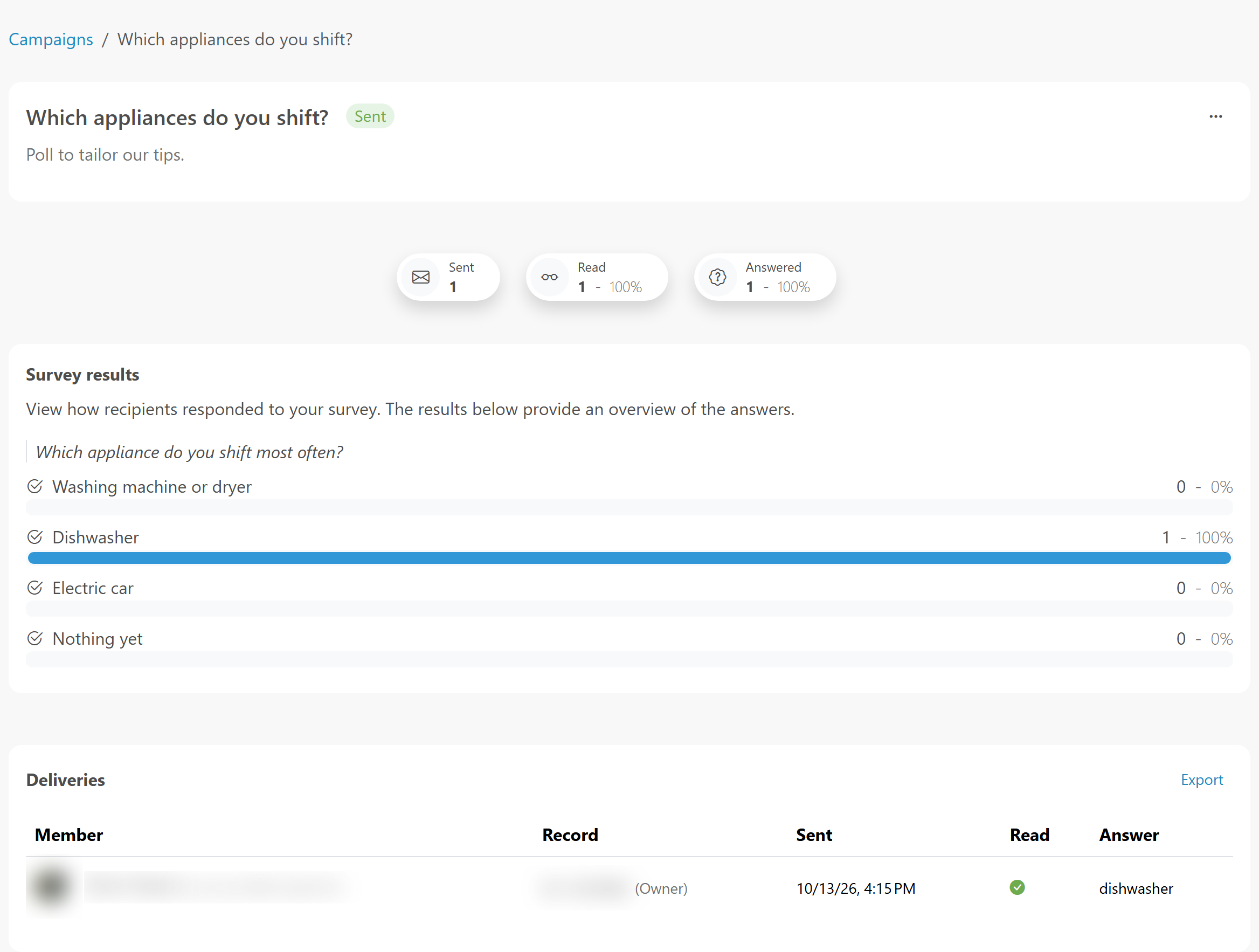
Under Survey results you see for each answer option how many recipients chose it. With Check boxes a recipient can choose several answers, so the percentages can add up to more than 100%. For a question of the Text field type, the individual answers are in the Deliveries table.
The Deliveries table shows for each recipient the name and email address (Member), the record for which they received the message with the matching role (Record), when the message was Sent, whether it was Read, and whether the link was clicked (Link clicked) or the survey answered (Answer). If someone has more than two records, click the number to see them. Use More to load more recipients.
With Export you get all recipients as a CSV or Excel file. The file appears on the Export history page, where you download it.
What your recipients see
Recipients find your message in their inbox on the website and in the mobile app. It arrives under the name you set in External records in the field Display name for members, or otherwise under the name of your Workspace, with the logo of your Workspace. If they allowed push notifications in the app and you switched on Push notification in the Planning step, they also get the message on their device.
Guest users manage for themselves which shared records they want to receive messages about:
- through Settings in their profile, under Messages about shared records;
- or through the menu next to the record in their records overview, under Shared with me.
When someone subscribes, their name and email address are shared with the service providers linked to that record, so they can see that their messages arrived. Someone who unsubscribes from one record stays reachable through the other records they are subscribed to.
On the Guest users page (in the menu under Users) you see per record, marked Receives messages, who is subscribed.
Frequently asked questions
Why is the number of recipients smaller than expected?
Usually a permission or a subscription is missing. Owners of external records must have given your organisation permission to send messages, and guest users must have subscribed to messages per record. Check the Messaging Consent column of your external records and whether the permission is switched on in the External records feature. Also check that your filters do not exclude records, for instance because a characteristic is not filled in.
Does someone get several messages if they are connected to several records?
No. Each person receives one message per campaign, even when several records match your filters. The Deliveries table does show every record for which that person qualified.
Can I still change a campaign after I scheduled it?
Yes, as long as the status is Scheduled. Choose Edit in the actions menu (the three dots) at the top right of the campaign page. Once sending has started, the content is fixed. To stop a scheduled send, turn the campaign back into a draft with Unpublish.
Do campaigns also reach Workspace users?
Not because they are a Workspace user. Campaigns address the owners and the guest users of records. Every internal record has an owner, and that is often a member of your staff. To reach only your external members, add the Record type filter with the value External record.