Energy planners
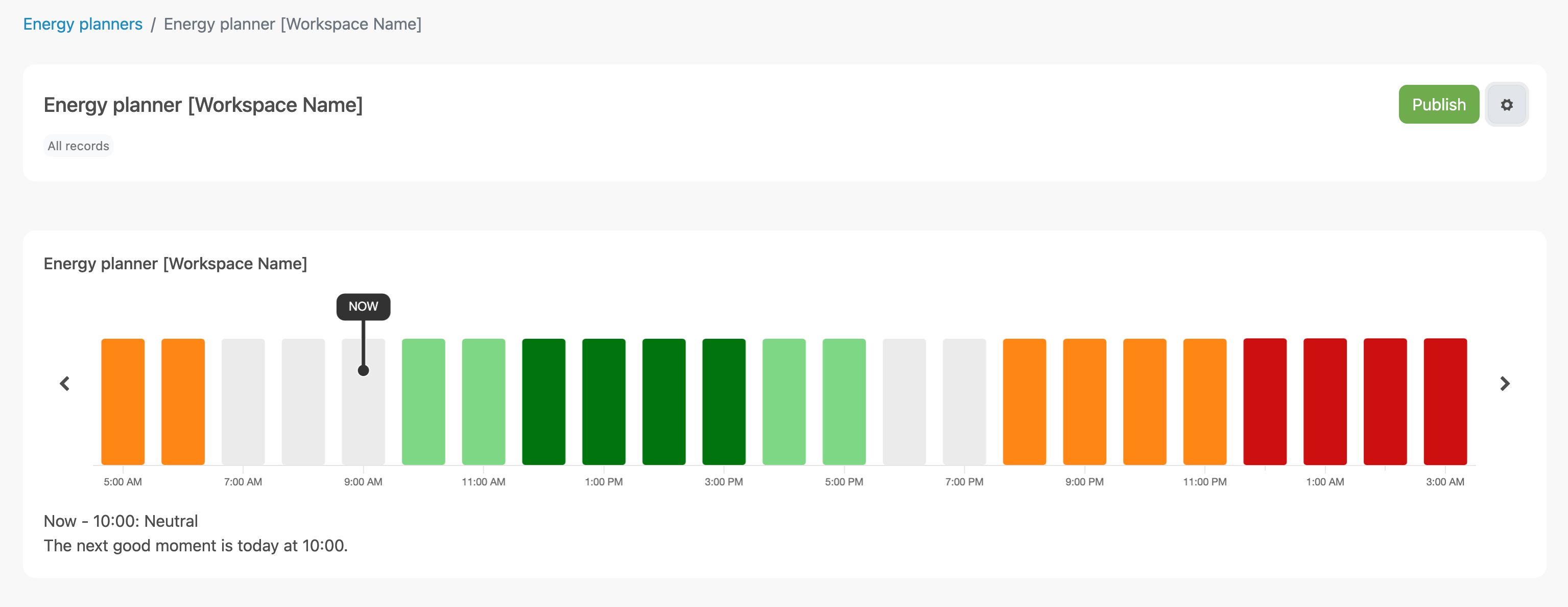
✓ EnergyID for BusinessWith the Energy Planner, your organization offers personalized consumption signals based on forecasts, visible on every record within your Workspace. The signals show the best moments to consume electricity, as a widget on the record dashboard, and optionally via smart devices linked to it.
Each energy planner is linked to a COFY signal module that handles the underlying calculations. For this, you need an active COFY connection in your Workspace.
Enable the Energy Planner feature
In your Workspace, go to Configuration and enable the Energy Planner feature. Once enabled, energy planner management appears at the bottom of that same configuration page.
Create an energy planner
- In your Workspace, go to Configuration and click Energy Planners.
- Click Add energy planner.
- Choose the COFY module you want to use for the signals.
- Give the energy planner a Title. This name is visible in the user's record.
- Optionally add a Description.
- Optionally select labels to enable the energy planner for specific records. Without labels, the planner is available in all records.
- Click Save.
After saving, you are automatically taken to the detail page of the new energy planner.
Publish and unpublish
You can publish an energy planner via the Publish button on the detail page, or via the publication setting in the edit form.
- Publish: the energy planner becomes immediately available in records of this Workspace, as a widget on dashboards, in the mobile app, and via smart devices linked to the record.
- Unpublish: the energy planner is no longer available for use in records.
Delete an energy planner
Open the energy planner via configuration and click the settings button. At the bottom of the form, you will find the Delete button. Confirm the deletion in the dialog that appears.
Note: Deleting an energy planner cannot be undone.
Frequently asked questions
Which COFY modules can I use?
Only COFY signal modules are available for energy planners. If you do not see any modules in the selection menu, check whether your COFY connection is correctly configured and whether the correct modules are available in your Workspace settings.
Can I create multiple energy planners?
Yes. You can create multiple energy planners, for example for different target groups via labels, or for different COFY signal modules.
Why is the energy planner not visible in the record?
Check whether the Show in records option is enabled and whether the energy planner labels match the labels of the relevant record. If labels are selected but the record does not have those labels, the planner remains invisible for that record.
Where is the energy planner visible for linked records?
The energy planner is automatically shown in the mobile app of each linked record (both for internal Workspace records and external records).Do you also want to integrate the energy planner as a widget on each record dashboard (visible in the web application)? Then add the module to your central dashboard templates. Read here how this works.