Dashboard templates
✓ EnergyID for BusinessWith dashboard templates in your Workspace, you can create reusable dashboards that are managed centrally and made available in records. This way, you do not need to rebuild the same dashboard structure each time, and you keep reporting consistent across multiple records.
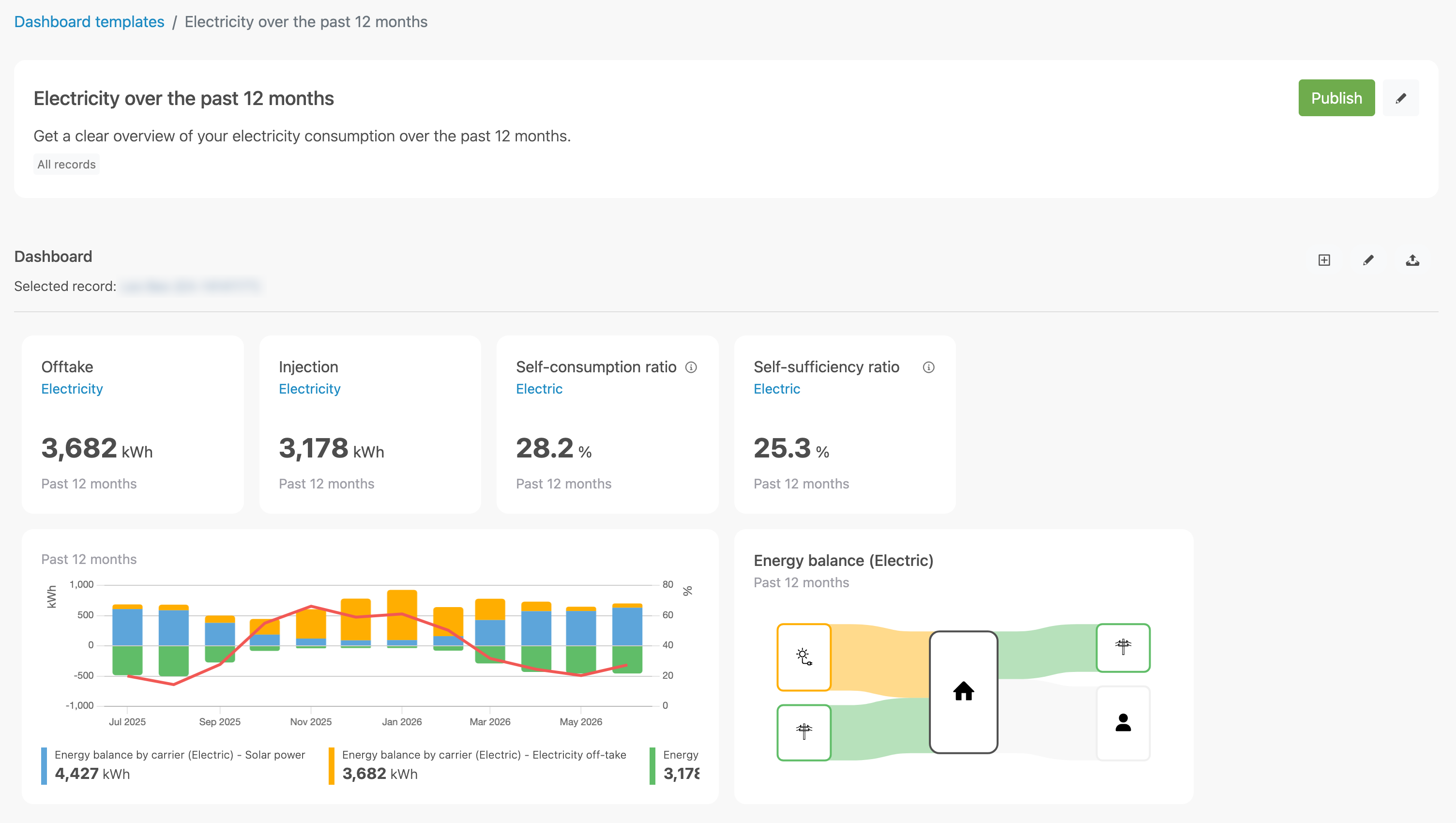
What this feature does
A dashboard template is a predefined dashboard setup with tiles (widgets) that you manage from the Workspace. A template can be in Draft or Published status.
- Draft: not yet available in records.
- Published: immediately available in records of this Workspace.
You can also limit templates to specific records by using labels. Without labels, a template is visible to all records.
Before you start
- In your Workspace, go to Configuration.
- Open the Dashboard templates feature.
Only Workspace users with admin access can manage dashboard templates.
Create a dashboard template
- Click Add in Dashboard templates.
- Enter a Name (required).
- Optionally add a Description.
- Optionally select one or more Labels.
- Click Save.
After saving, you are automatically redirected to the detail page of the new dashboard template.
Configure tiles in the template
On the detail page, you build the content of the dashboard template.
- Use Add tile to add new widgets.
- Use Edit to update tile layout or content.
- Use Upload dashboard export to import a JSON file.
JSON import from an existing record dashboard
You can export an existing dashboard from a record and use that export as the starting point for a dashboard template in your Workspace. This helps you quickly reuse an existing setup.
- Open the dashboard in the record you want to use as a base.
- Export the dashboard to JSON.
- Open your dashboard template in the Workspace.
- Click Upload dashboard export and select the JSON file.
Note: Only use tiles that are generically reusable. Tiles that reference a specific meter cannot be used in dashboard templates, because a meter is only available in one record. A JSON import containing such tile(s) will fail.
If you upload invalid JSON, or an export with unsupported or invalid widget configuration, the import is rejected.
Preview with a record
You can preview the template using a selected record.
- Under Selected record, click the record name.
- Choose the record you want to use for preview.
- Confirm your selection.
Publish and unpublish
You can publish a template using the Publish button on the detail page, or through the publish setting in the edit form.
- Publish: the template becomes immediately available in records of this Workspace.
- Unpublish: the template is no longer available for use in records.
Note: A published template without configured widgets will show an empty dashboard.
Use labels to target templates
With labels, you define for which records a dashboard template is visible.
- Select labels in the template.
- Only records with at least one of those labels will see the template.
- If you select no labels, the template applies to all records.
Edit or delete a dashboard template
- Open the template from the list in Dashboard templates.
- Click Edit to update name, description, labels, or publish status.
- Click Delete to permanently remove the template and confirm.
Note: Deletion cannot be undone.
Frequently asked questions
Who can manage dashboard templates?
Only Workspace users with admin access to Workspace configuration can create, edit, publish, unpublish, or delete templates.
What is the difference between Draft and Published?
Draft is not yet available in records. Published is immediately available in the records where the template applies.
Can I reuse an existing dashboard?
Yes. You can export a dashboard from a record as JSON and upload that export into a dashboard template.
Why does a JSON import sometimes fail?
An import fails when the file is not valid JSON, contains invalid widget configuration, or includes tiles that reference record-specific meters that are not template-compatible.
Can I limit templates to only part of my records?
Yes. Use labels on the dashboard template to limit visibility to records with matching labels.