Custom fields
✓ EnergyID for BusinessWith Custom fields, you can add extra information to records in your workspace. This helps you structure records more clearly and filter faster based on data that matters to your team, such as an internal reference, status, date, or a Yes/No attribute. Each custom field is available on all records, but you can choose which records need a value. Custom fields and their values are only visible to workspace members.
Create a custom field
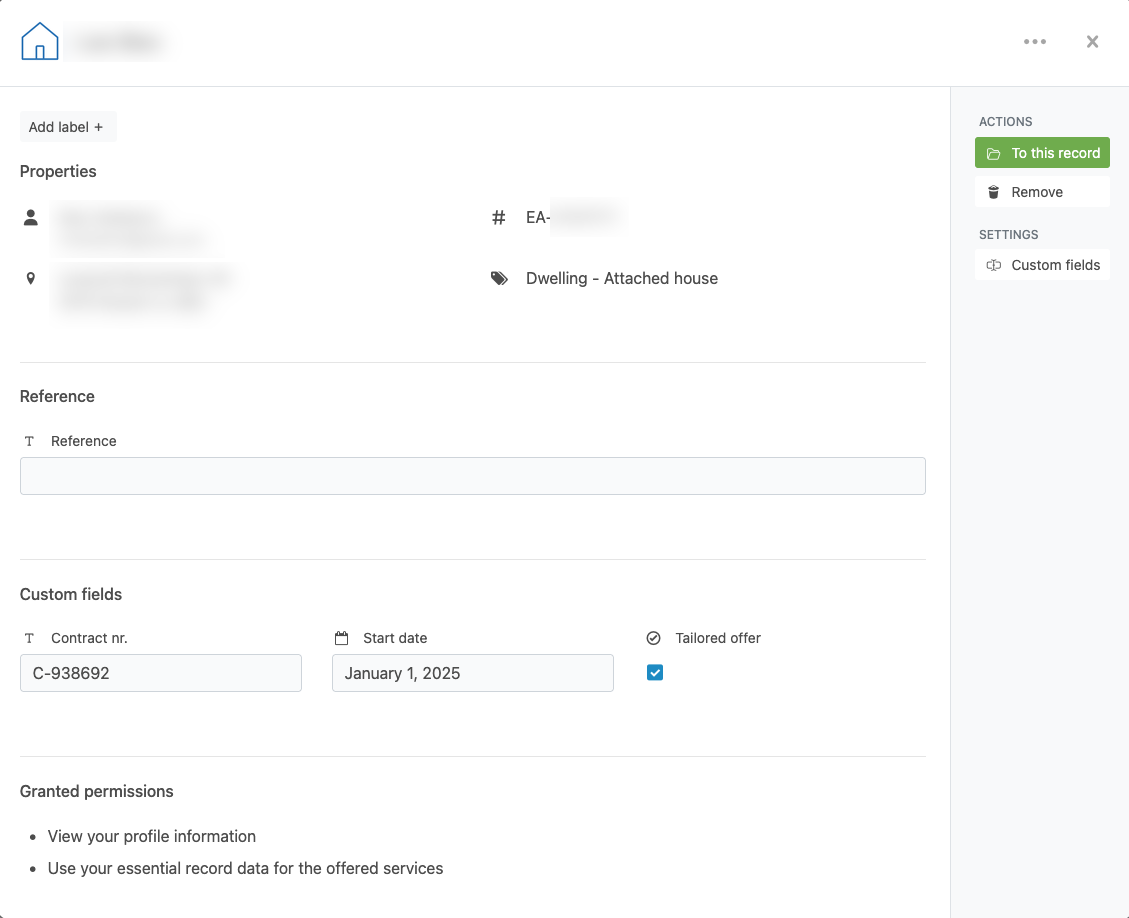
You can add a custom field from the record overview.
- Click a record in the overview.
- In the pop-up, on the right side, click 'Custom fields'.
- Under the existing fields, click 'Add field'.
- Enter a name for the custom field and choose the field type: Date, Number, Text, or Yes/No.
Using Custom fields
You can enter a different value for each custom field on each record in the workspace. Click a record to open the details and select the field you want to fill in.
Show a field in the list
The value of a custom field is shown in the record details. If you also want it to appear in the overview list, select the field in the Columns dropdown menu.
Edit or delete custom fields
- Click a record in the overview.
- In the pop-up, on the right side, click 'Custom fields'.
- Select the field you want to edit or delete.
Custom field data in exports
Each custom field is included in CSV and Excel exports as a separate column.