Datadienst Slimme Meter (P4)
With EnergyID, you can easily link your smart meter in the Netherlands to your record via the P4 data service. Follow the steps below to have your consumption data retrieved automatically.
Grant EnergyID access to your consumption data.
-
Select a record and enter the address
First, select the record to which you want to link the smart meter data. The postal code known for the selected record will be filled in automatically. You enter the house number yourself, with an optional house number addition.
The complete address is needed to look up the available smart meters at the specified address.
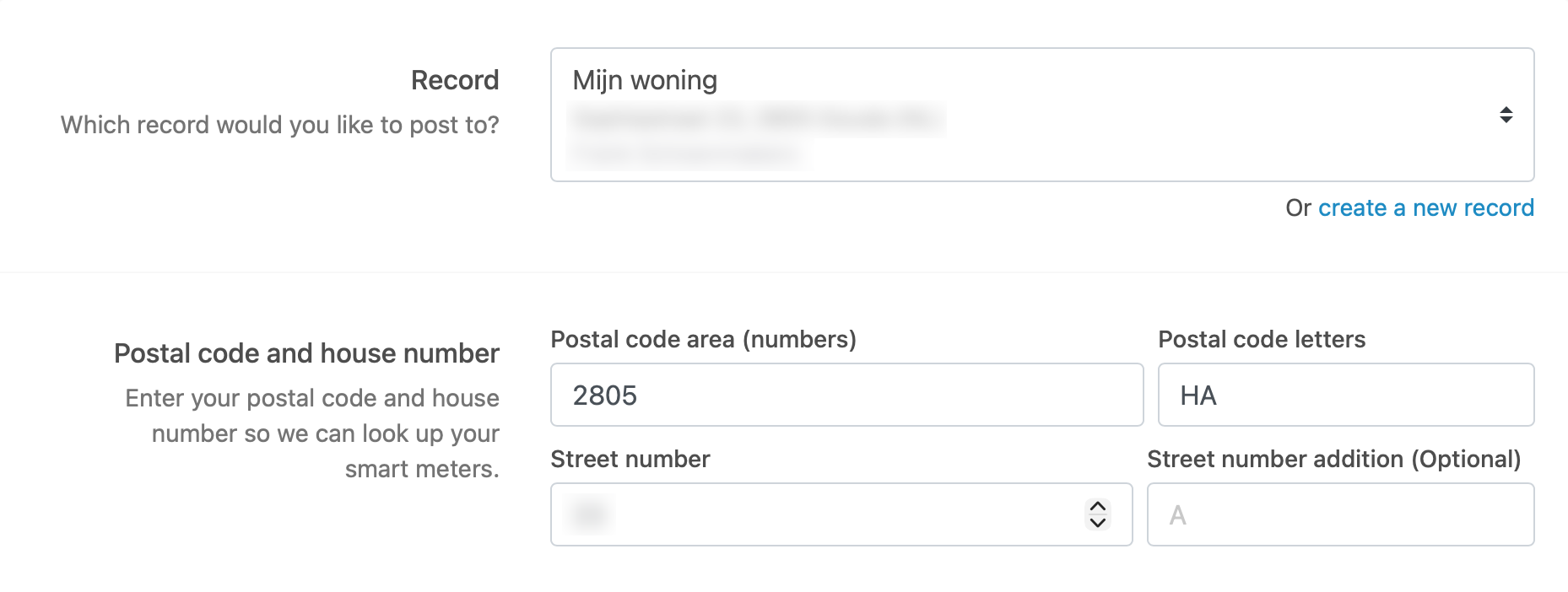 Note: The entered address must fully match the address under which the smart meters are registered.
- If you do not enter a house number addition, only meters without an addition will be shown.
- The postal code of the record must match the postal code of the smart meters you want to link.
-
Select smart meters
Click on ‘Request EAN codes’. EnergyID will then retrieve all smart meters known at the entered address. These will be displayed in an overview.
You then choose which smart meters you want to link to your record. Multiple meters can be selected at once.

Don’t see all your smart meters?
We use eancodeboek.nl to look up the meters at the specified address. If you do see the expected results there, please contact us.
-
Meter Number Validation
To ensure that you actually have access to the smart meter at the specified address, we ask as an extra security check for the meter number of the electricity meter.
This prevents anyone from simply requesting data from any random meter. The meter number helps us verify if the connection is legitimate and increases the security of data access.
You can find the meter number on the physical electricity meter itself. It is a series of letters and numbers, usually located directly next to or below a barcode. The meter number often starts with one of the following letter combinations: E00…, ZBB…, KA…, ZAB…, ZBEV…, IQ…
-
Consent for data exchange
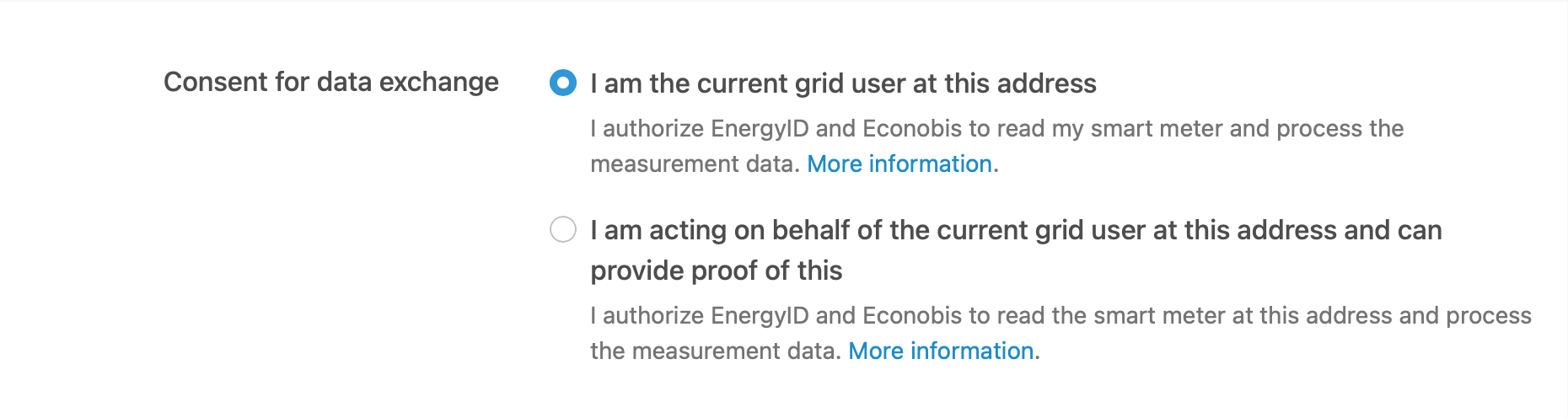
Indicate in what capacity you are making the connection:
- I am the grid user at this address.
- I act on behalf of the current grid user at this address and can provide proof of this.
At this step, you also give permission to read the smart meter and process the data. More information about the consent given can be found here.
-
Start date for data retrieval
Indicate whether the current grid user has moved to this address in the past 13 months, or whether a supplier switch or contract holder change has taken place during that period.
This information is needed to determine from which date EnergyID may request meter data via the P4 data service. We can go back a maximum of 13 months.
If the current grid user has lived at the address for more than 13 months and there has been no supplier or contract holder change since then, you do not need to provide an extra date.
If the current grid user moved in less than 13 months ago, enter the date on which the current grid user moved to this address. In case of a supplier switch or contract holder change, choose a start date after the date of the change. Do not choose the exact date of the change.
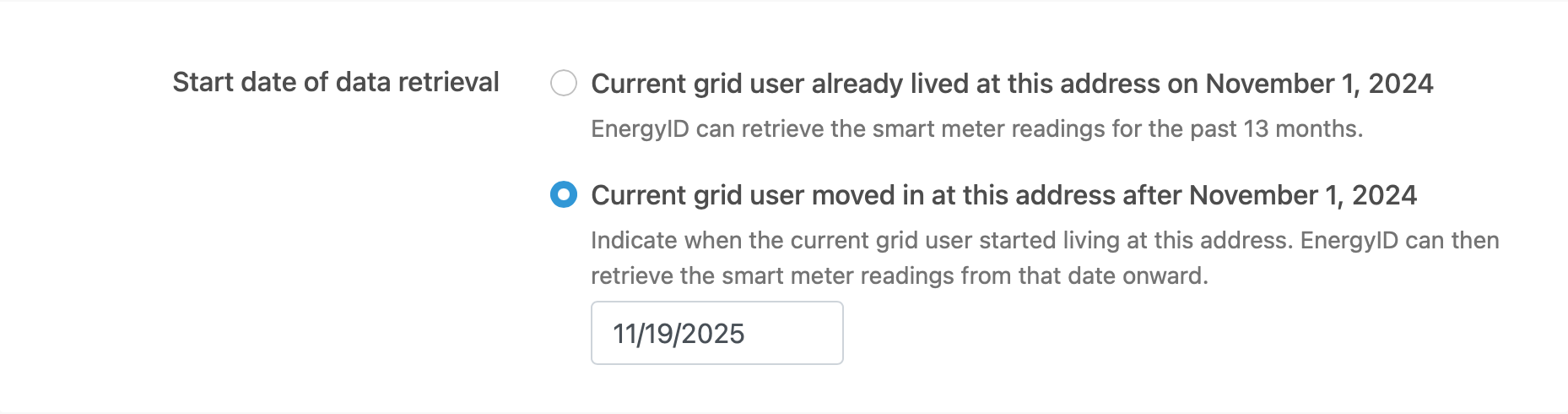 This screenshot was taken in November 2025.
 -
Create connection
Click on ‘Create’. You will receive a confirmation that the connection was created successfully. Please note that it can take up to 24 hours before the meter data is available. As soon as the data is available, you will receive a notification from EnergyID and the new metering points will be automatically added to your record.
Your connection was automatically removed?
While retrieving meter data via the P4 data service, EnergyID may be notified that the authorization on the connection has ended. This can happen after a move, supplier switch, or contract holder change.
In that case, we remove the integration. The historical meter data that was already in your record is retained, but will no longer be updated. You will receive a notification like this in your message center:
Your Smart Meter Data Service (P4) integration was removed because EDSN ended the P4 authorization on the connection. This can happen after a move, supplier switch, or contract holder change.
Still living at the same address? Create the link again and pick a start date the day after that change. EDSN rejects the date of the change itself, even if you enter it exactly. One day later does work.
Read the Smart Meter Data Service (P4) help article to see what applies in your situation.
Do you still live at this address?
Then this notification may have been caused by a supplier switch or contract holder change. Create the connection again and pay close attention to the start date.
Choose the day after the change, not the date of the change itself.
EDSN only accepts a start date that is strictly later than the date of the change. If you enter the change date exactly, the link is rejected and disappears again the next morning. One day later does work.
Example: if the supplier switch was on 7 May, choose 8 May as the start date.
Meter data from before that change is no longer available via P4. You can usually download that data from your grid operator's portal and then import it into EnergyID.
Have you moved?
Do not create the connection again. The new resident can create their own connection for the smart meter at that address.
I see a synchronization error on the integration page?
While retrieving measurement data via the P4 data service, EnergyID may receive error messages. When we receive such an error message, it is displayed on the integration page so that the integration owner can see why no data was synchronized and, if needed, take action to resolve the issue.
038 - The smart meter is administratively turned off (De slimme meter staat administratief op uit)
It is possible to have a smart meter administratively set to “non-smart” at your grid operator; in that case, it no longer sends daily and quarter-hour readings to the grid operator. You can have this reactivated through your grid operator (and/or supplier).
Does your consumption chart look strange?
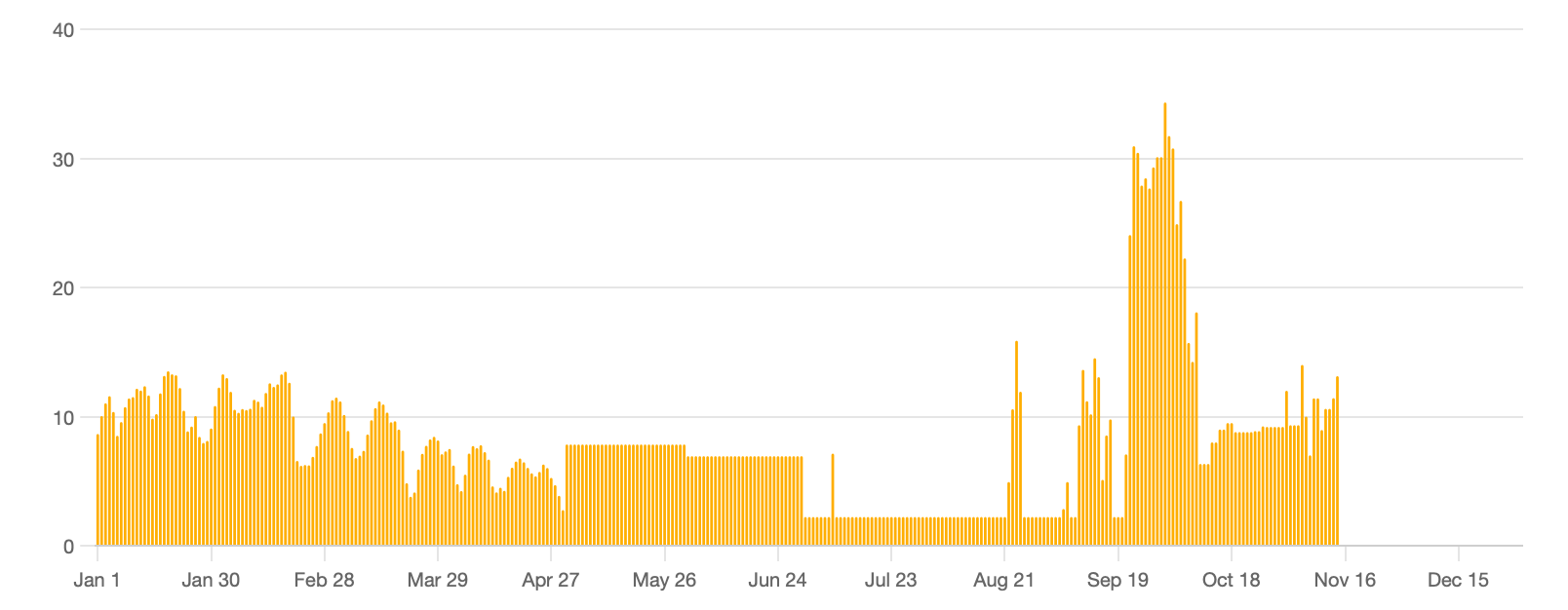
Your consumption chart may look unusual, for example with flat consumption over several quarters of an hour or days. This is usually due to temporary interruptions in the connection between your smart meter and the EDSN data platform, resulting in fewer meter readings being transmitted. This can vary from a few quarters of an hour to several days. Once the connection is restored, EDSN will receive meter readings again, which we can then retrieve.
In the chart, we calculate the consumption between two consecutive meter readings and distribute this consumption evenly over the intervening period. As a result, it may appear that you had constant consumption during that period, while in reality this may not have been the case.