Device management
✓ EnergyID for BusinessWith the Devices feature you manage the metering devices of your own fleet from your Workspace: energy meters, smart plugs, or a gateway that forwards the data of several devices. Each device checks in with a provisioning key of your Workspace. You decide which record a device is linked to, without the resident having to enter a claim code.
Building the firmware or the gateway yourself? How a device checks in through /hello and then sends its data is described in Incoming Webhooks.
The feature is available for Workspaces with an Advanced subscription. Only Workspace administrators can use it.
How does it work?
- Provisioning key: a key stands for a fleet of devices, for instance per project or per installer. You configure the key and its secret on your devices or gateway.
- Checking in: each time a device checks in, it appears in the list or is updated. A new device is Not linked.
- Linking: once you link the device to a record, it receives its connection at its next check-in and sends its data to that record. The meters are created automatically with the first readings.
You can link a device to an internal record or to an external record that is linked to your Workspace. Read more about external records in Working with external records.
View your devices
- Open the Workspace and click Devices in the menu.
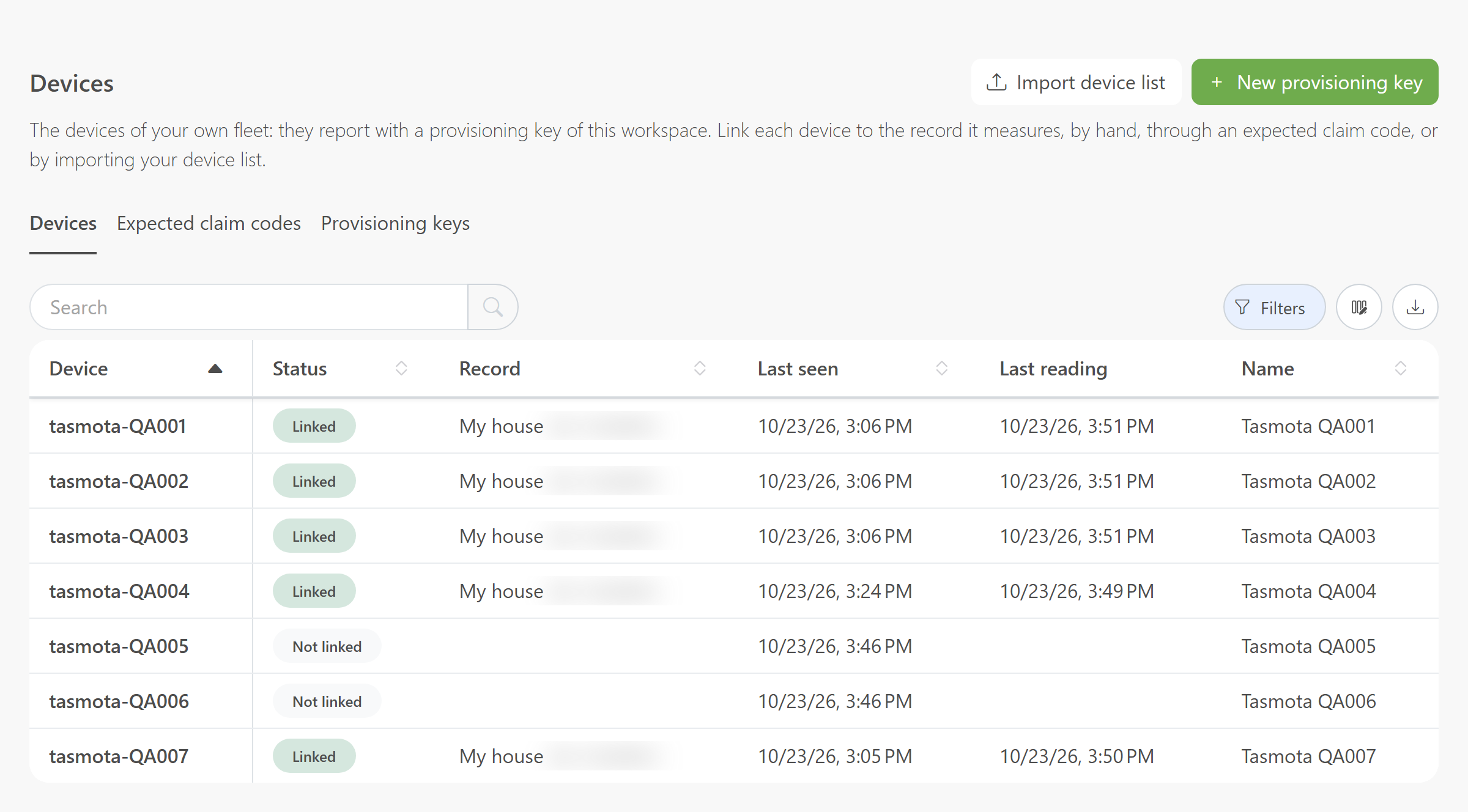
For each device you see its status (Linked or Not linked), the record, when the device last checked in and when its last reading arrived. For a linked device, Last reading tells you whether data is still coming in. With Filters you can, for instance, show only the devices of one provisioning key.
Link a device by hand
- Click a device with the status Not linked in the list.
- Under Link to a record, search for the record the device measures.
- Click Link.
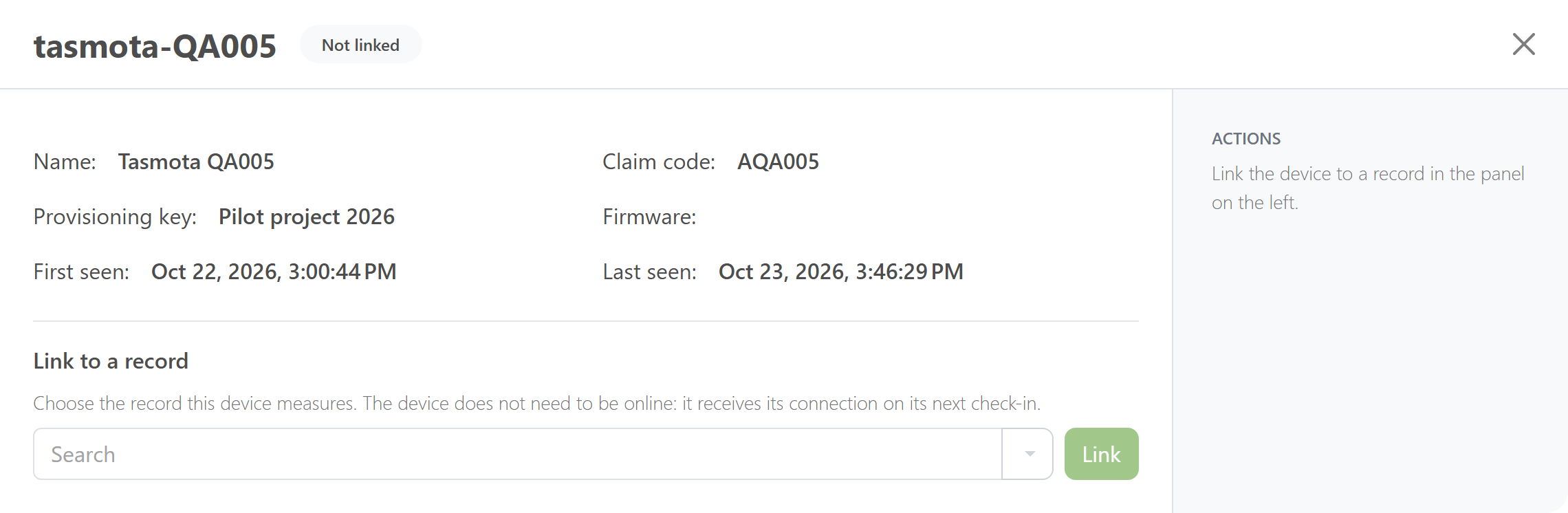
The device does not need to be online. It receives its connection at its next check-in.
Import your device list
Do you have a list of which device belongs to which member, for instance from your installer? Then you link all devices at once. EnergyID finds each member's record by the reference you entered with the invitation, or by a custom field.
- Click Import device list.
- If your Workspace has more than one provisioning key, choose the right Provisioning key.
- Choose a CSV file or paste the list into the text box: one device per line, first the claim code or device id, then the member's reference. A header line with column names is skipped and extra columns are ignored.
- Do you recognise your members by a custom field instead of their reference? Then enter the name of that field under Custom field to match on.
- Click Preview and check the status of each line.
- Click Apply.
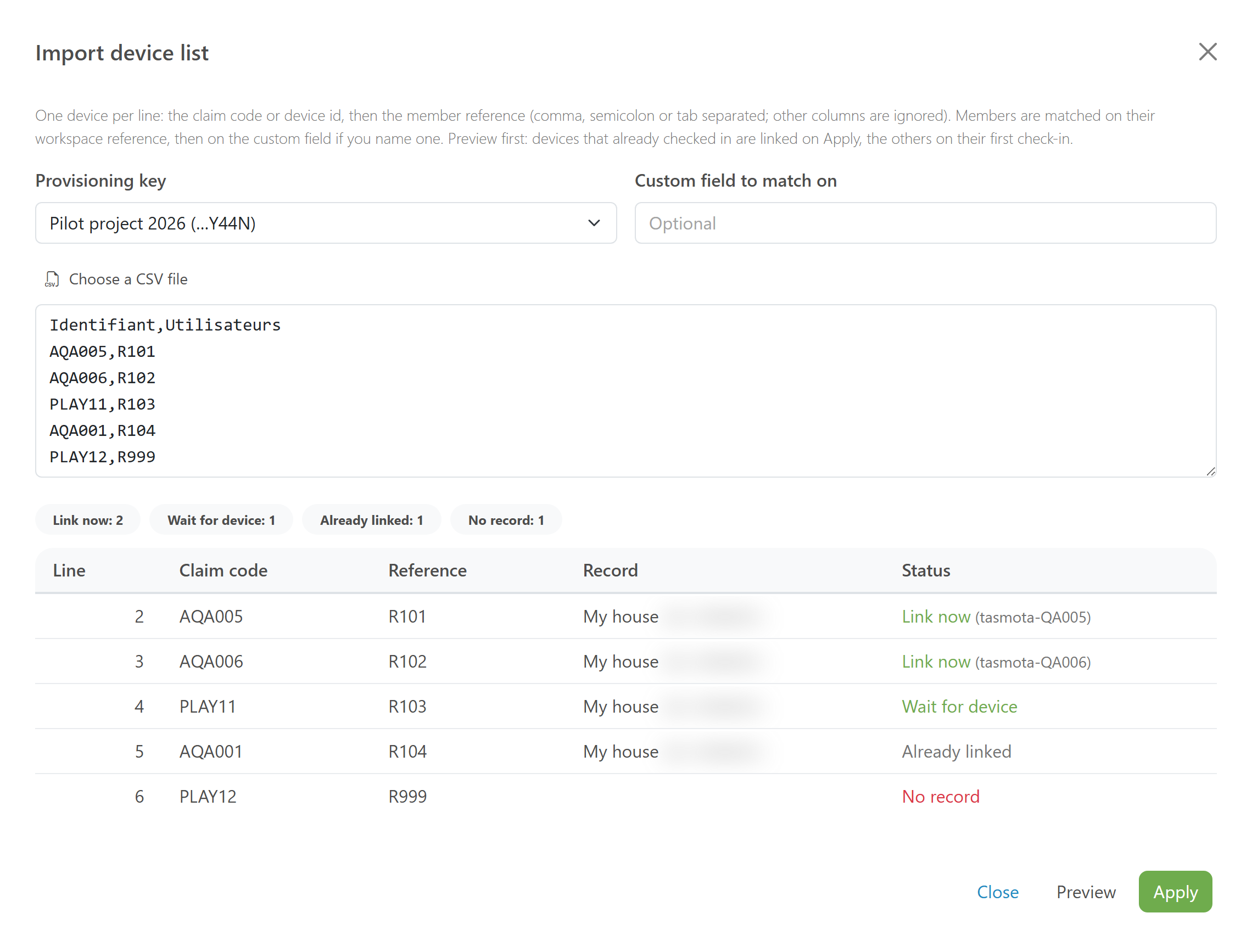
The preview does not change anything yet. For each line you see what Apply will do:
- Link now: the device already checked in and is linked right away.
- Wait for device: the device has not checked in yet. It is linked automatically at its first check-in.
- Already linked: the device is already on a record; nothing changes.
- No record or Several records: no record, or more than one record, has that reference. Correct the reference and import the line again.
You can safely import an updated list again, for instance when new members have created their account. Devices that are already linked or already expected stay as they are.
Add an expected claim code
Do you want to assign one device to a record in advance, before it is installed? Then add an expected claim code. The device is linked as soon as it is known: right away if it already checked in, otherwise at its first check-in.
- Open the Expected claim codes tab.
- Click Add claim code.
- Enter the claim code or device id shown on the device, and choose the record it belongs to.
- Click Save.
This tab also shows which codes are still waiting for their device and which are already linked. The codes from an imported list appear here too.
Manage your provisioning keys
The Provisioning keys tab shows, per key, how many devices checked in with it and how many of them are linked.
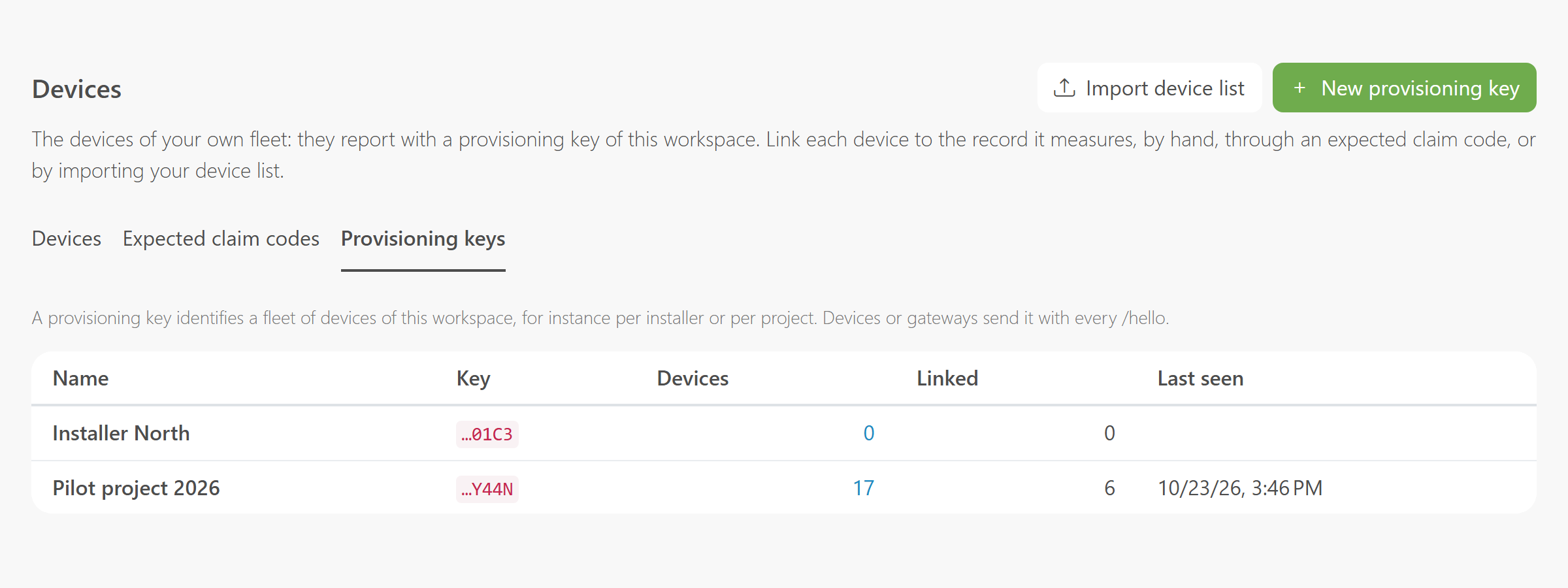
- Click New provisioning key.
- Give the key a clear name, for instance the name of the project or the installer.
- Click Create.
- Copy the provisioning key and the provisioning secret to a safe place right away.
Configure both on your devices or gateway. They are sent as X-Provisioning-Key and X-Provisioning-Secret. The secret is shown only once.
Click a key to change its name or to revoke it.
Note: when you revoke a key, the devices using it can no longer check in. The unlinked devices and the expected claim codes of that key are removed. Linked devices keep sending data.
Unlink a device
- Click the linked device in the list.
- Under Actions, click Unlink and confirm.
The device's integration is deleted. The device appears as Not linked again and you can link it to another record.
Frequently asked questions
Does the resident need to do anything?
No. As soon as the record is in your Workspace, as an internal record or as a linked external record, you link the device. The resident then sees the data in the record.
Why is my device not in the list?
The device has not checked in yet with a provisioning key of this Workspace. Check the key and the secret on the device or gateway. The device appears at its first successful check-in.
A linked device has no recent reading. What now?
The device only receives its connection at its next check-in and sends its data after that. If Last reading stays empty or old, check whether the device is online and forwarding data.
Can I link a device to another record?
Yes. Unlink the device first, then link it to the right record.