Share a record with someone outside your team
✓ EnergyID for BusinessGuest users are people with whom you share one or more specific records. They do not receive direct access to the Workspace and can only see the records for which you grant them separate permissions.
Available from the Standard subscription.
This way, a facility manager works in all records of the workspace, while a tenant only sees the record of the rented space.
Good to know: is the tenant a private individual, for example the resident of an apartment? Then it is better to transfer the record to that person and keep it as an external record in your workspace. This way, the resident remains the owner of their own data. Transfer a record →
View guest users
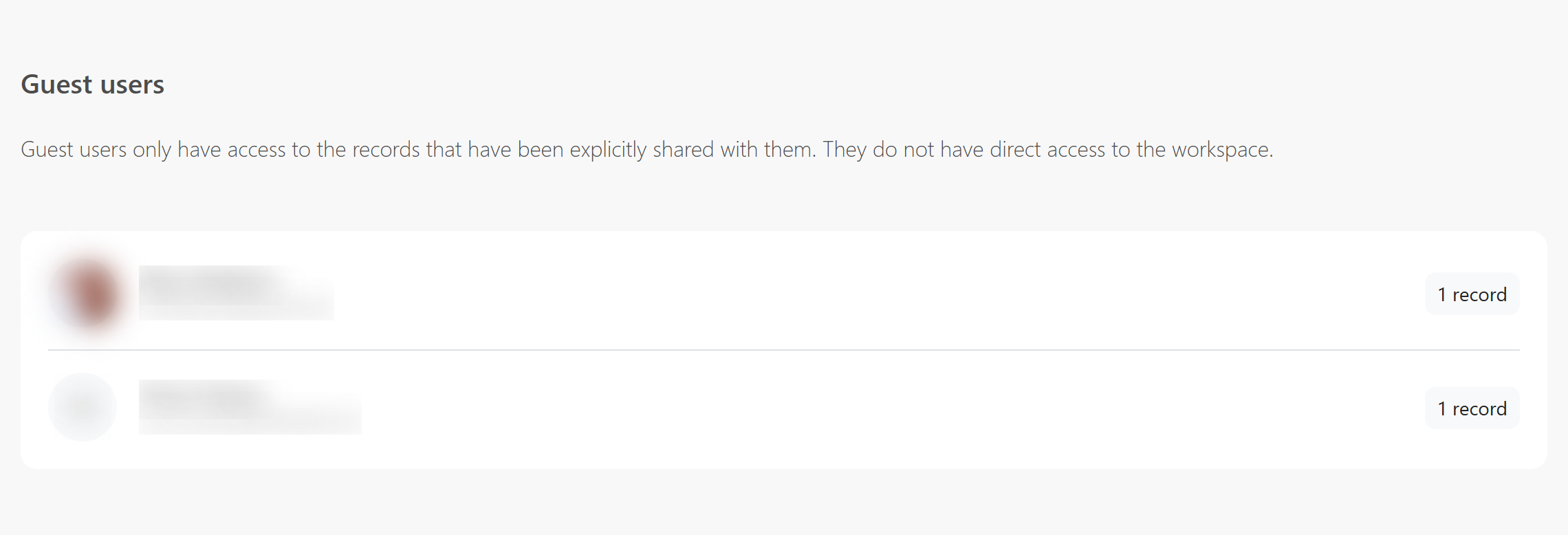
Open the Workspace and choose Users > Guest users. The overview shows every guest user and the number of records shared with that person.
Who can share a record?
For records of your workspace, a workspace administrator can add guest users. Workspace editors can do so too, unless the workspace administrator has turned off this option. For an external record, the owner decides who gets access. Working with external records →
Share a record
- Open the Records page in the Workspace.
- Select the record you want to share.
- Open the actions and choose Share.
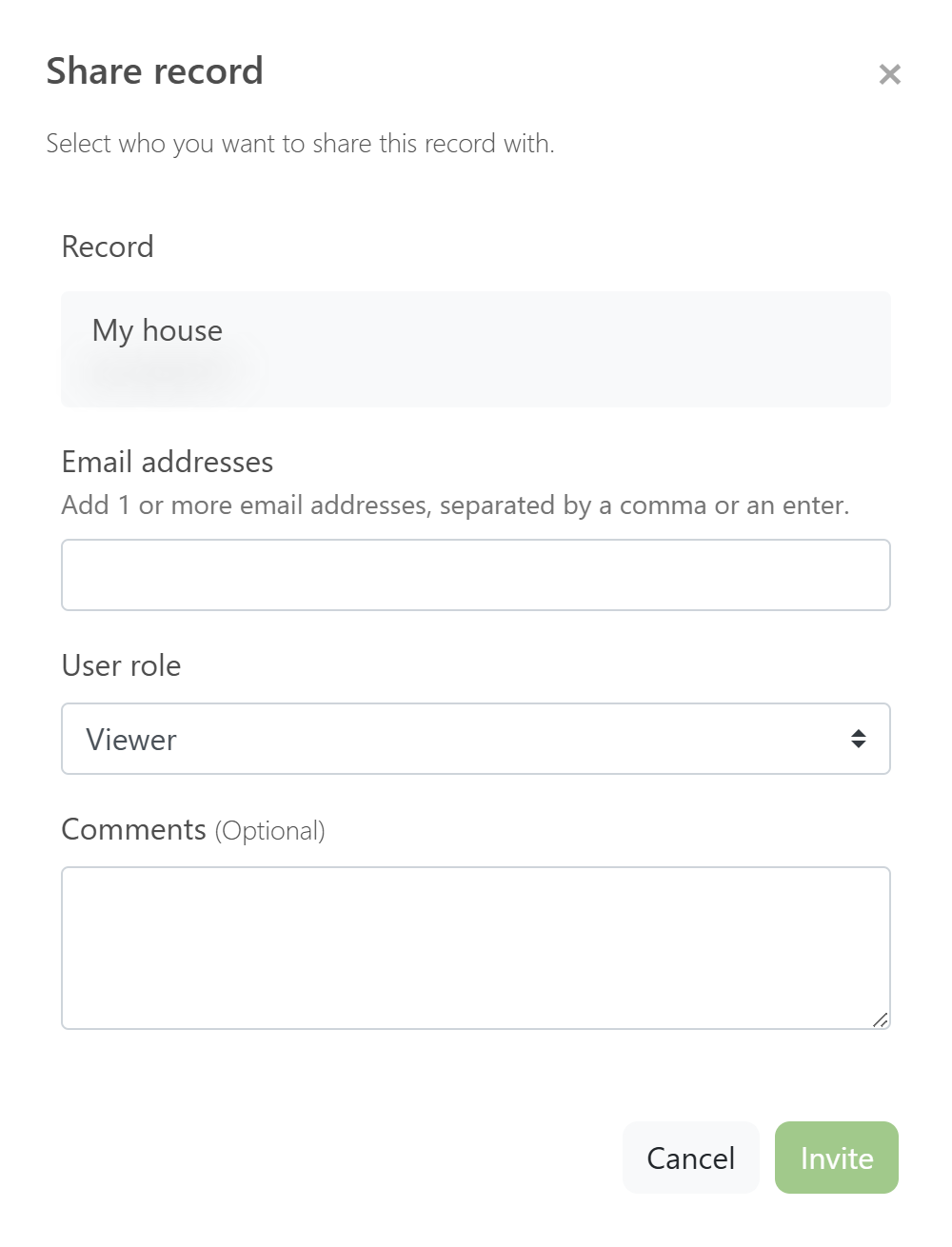
- Add one or more email addresses and choose the appropriate role. Viewer is selected by default.
- Optionally add a comment and click Invite.
Guest-user permissions
The selected role applies only to the selected record:
- Editor: can view and edit the record.
- Contributor: can add meter readings and register timeline events, but otherwise has read-only access.
- Viewer: can only view the record.
Good to know: a guest user does not become a Workspace user. Share each additional record separately if that person needs access to more records.
Manage guest access
In the Guest users overview, click the record count next to a user. You can change that person’s role for each record, revoke access to a record, or share another record with the same user. When no records remain shared, the user disappears from the overview.
Do you want to give someone access to all records in your workspace? Then give that person access as a workspace user.
Frequently asked questions
Who can add guest users?
For a record of your workspace, a workspace administrator can add guest users. Workspace editors can do so too, unless this option has been turned off for them. For an external record, the owner decides who gets access.
Does a guest user get access to the Workspace?
No. A guest user only sees the records that have been shared with that person separately, not your workspace. If a record is Premium, the guest user sees that in the record and can use the Premium features.
Can the same guest user access multiple records?
Yes. Share each additional record separately and choose the appropriate role for each record.