Set up a personalised sign-up page
✓ EnergyID for BusinessThrough your sign-up page, customers or members link their record to your workspace. You decide what that page looks like and who can sign up. You set this up in the configuration of External records. Working with external records →
Customise the sign-up page
The sign-up page is the first contact with your service. Make clear what people give permission for and which data they share. You set:
- Name of the service provider: by default the name of your workspace. This name appears in all permission texts.
- URL of the sign-up page: choose the slug yourself, so the link matches your organisation or campaign.
- Large logo: appears at the top of the sign-up page.
- Disclaimer: a short note on which data is shared and what for.
- Privacy policy: a link to the privacy statement on your own website.
- More info about the link: a link to a page that explains your services.
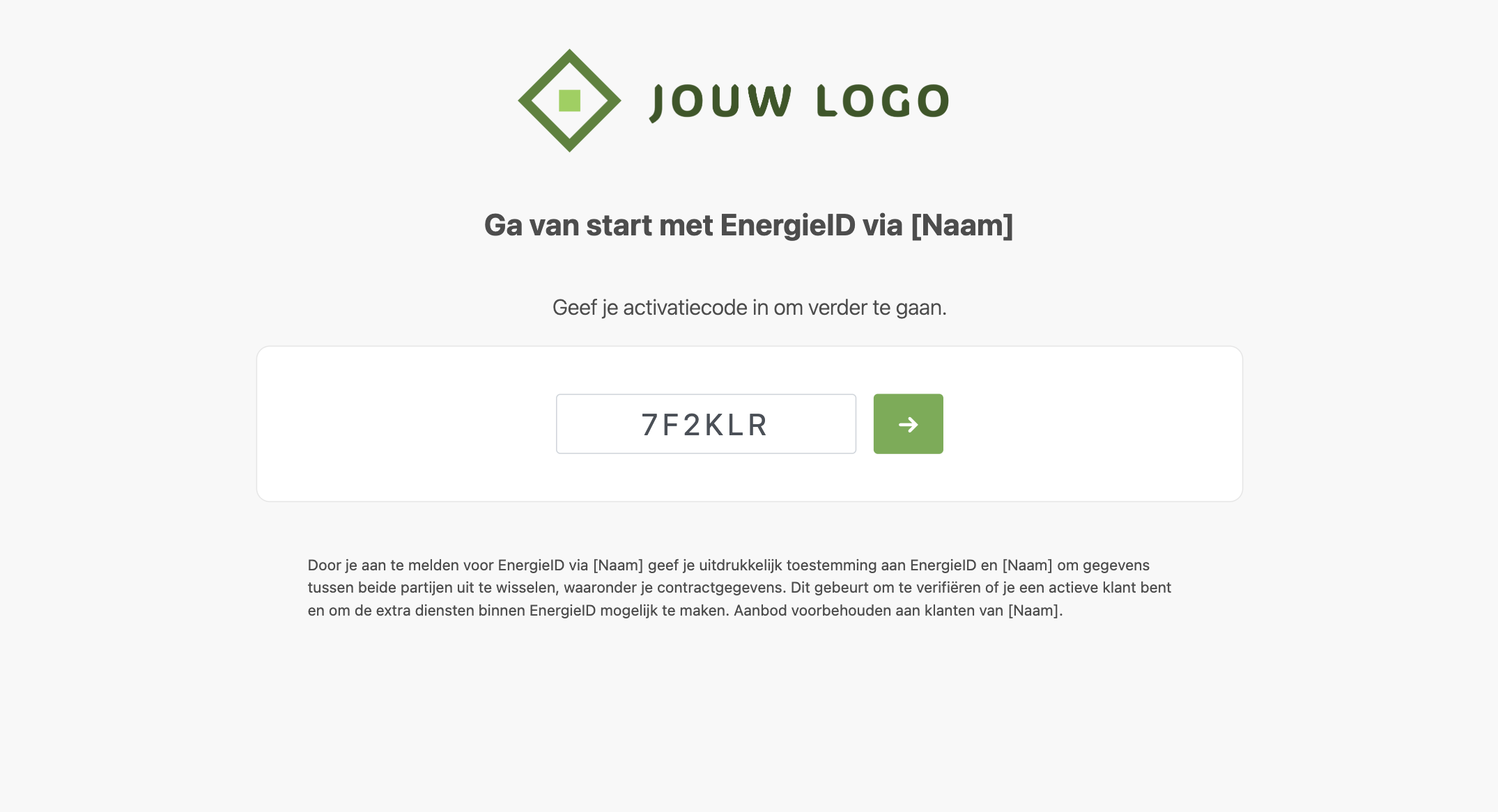
Sign up with a personal code
Available from the Standard subscription.
If you work with your own customer or member base, you don’t have to invite everyone. Each customer or member gets a personal code from your own administration. Under Who can submit a record?, choose the personal code. On the sign-up page, that person enters the code as the first step. EnergyID checks the code with your administration through the members module of your COFY back office:
- If the code is valid, the sign-up continues and the record is linked to your workspace.
- The answer from your administration can also contain contract data, such as the tariff. The record then uses it, for example in the cost analysis.
- If the code is invalid, the sign-up is refused.
A code can be used as many times as your administration returns addresses for that customer or member, and at least once.
This requires a linked COFY back office. See What is COFY? and Connect your COFY back office.
Prefill the code in the link
Do you send the codes yourself, for example from your customer portal? Then add the code to the sign-up link. This works for invitation codes and for personal codes:
https://app.energyid.eu/sign-up/your-slug?code=7F2KLR
A customer then clicks a button such as "Activate EnergyID Premium" and doesn’t have to enter the code. Invite customers or members →