Check the diagnostics of your record
★ PreviewThis feature is in preview. It is only available to participants in the preview programme.
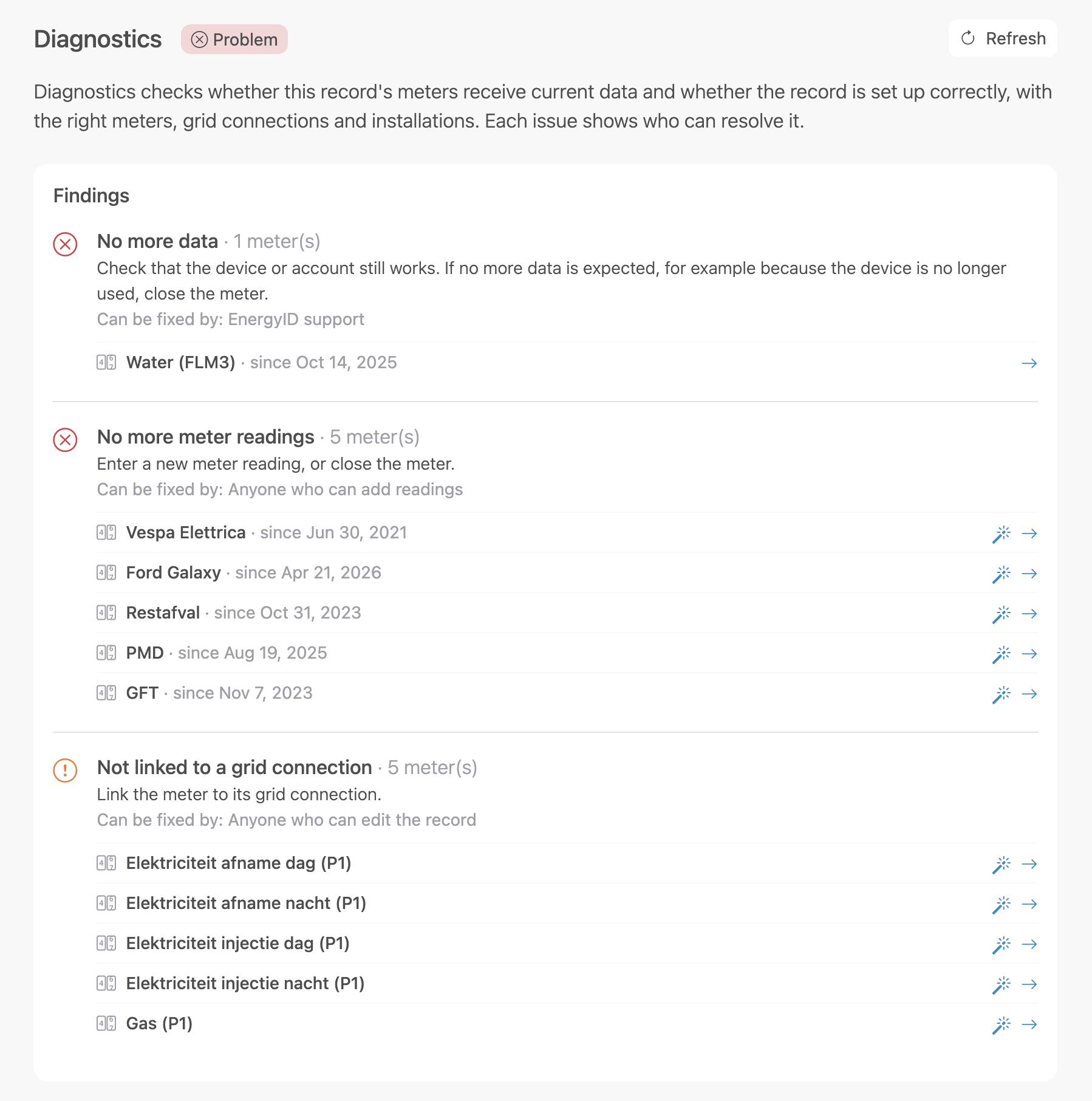
Diagnostics show whether there are issues or points of attention in your record. EnergyID checks whether your measurement data is up to date and whether your meters, grid connections and installations are set up correctly. This check runs when you open your record, and again when you click Refresh.
For each finding, you read what is going on, how to fix it and who can do so. For many issues, EnergyID also suggests a fix that you can review and apply.
Opening diagnostics
- Open your record.
- Click Diagnostics in the menu.
Next to Diagnostics in the menu, you immediately see the overall status of your record.
The status of your record
Diagnostics give your record one of the following statuses:
- HealthyHealthy: everything is in order. No points of attention were found.
- AttentionAttention: something needs your attention, but your data remains usable. For example when a meter reading is overdue.
- ProblemProblem: your data is incomplete or incorrect. For example because no more data comes in or because consumption is counted twice.
- ClosedClosed: the record is closed and is no longer checked.
The overall status is determined by the part with the highest urgency: your meters, integrations or grid connections.
Reading the findings
Under Findings, you see for each notification:
- what is going on and how to fix it;
- who can fix the issue (under Can be fixed by);
- which meters, integrations or grid connections the notification concerns, and since when;
- an arrow that takes you straight to the right page to fix the issue.
Cause and consequence
Some findings are the consequence of another issue. They are listed below the parent finding as a Consequence.
When you fix the cause, the consequence usually disappears by itself. An expired connection, for example, can mean that no more data comes in.
Who can fix it?
Not every issue can be fixed by everyone. Under Can be fixed by, you see who can make the necessary change:
- Who can edit the record: the owner, administrators and editors of the record, and the administrators and editors of the workspace.
- Who can enter meter readings: contributors of the record too.
- Who created the connection: only the person who created the connection with the service. That person can log in again to restore the connection.
- EnergyID support: the issue lies with EnergyID or with the service. If it concerns an integration, first check in the service’s app whether everything works. If it does, contact support.
Applying a suggested fix
If there is a clear fix for an issue, the finding shows a magic wand. Click it to open the Suggested fix.
For each meter, integration or record, you see what changes, with the current and the suggested value.
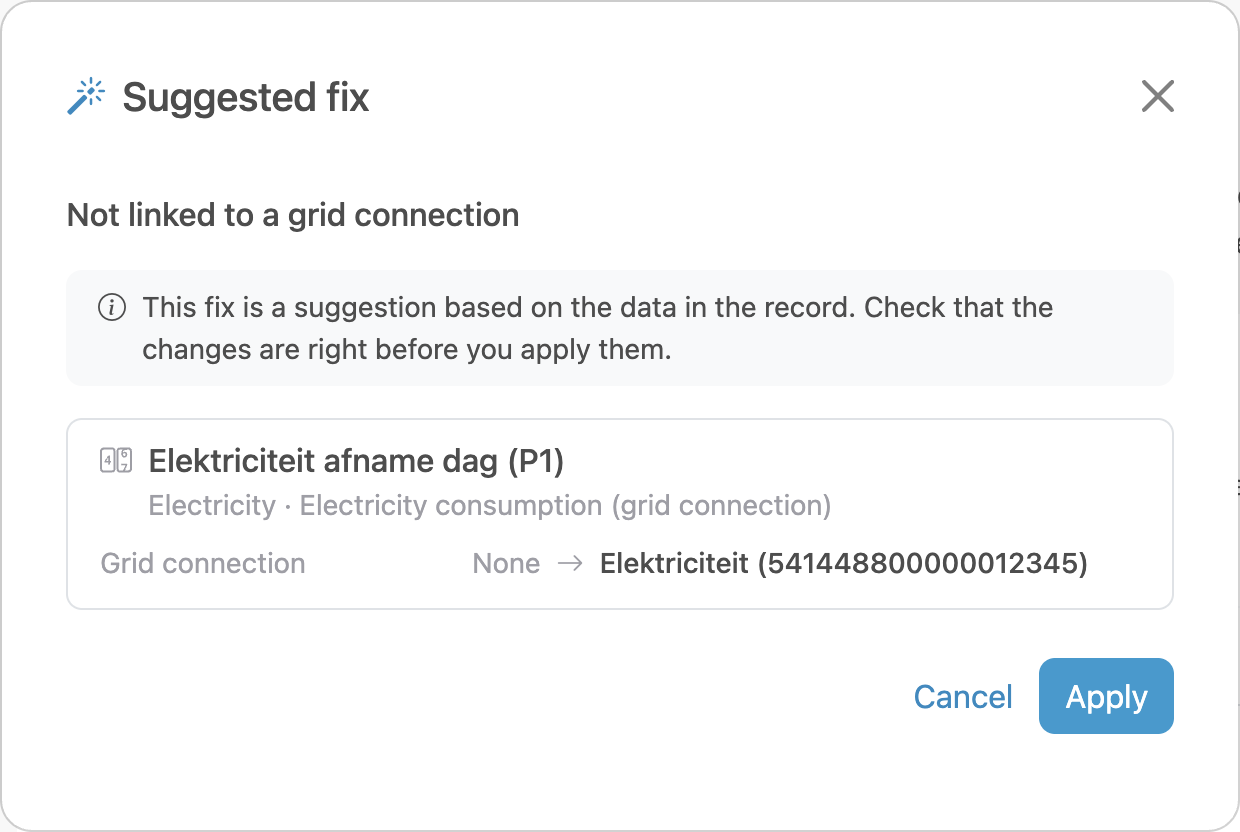
- Check whether the suggested changes are right. EnergyID bases the suggestion on the data in your record. You know best what has actually changed.
- Click Apply to make the changes.
Diagnostics are updated right away. The applied fix also appears in the Activity of your record, just as when you would make the change yourself.
Note: some fixes remove a meter or integration. You cannot undo this. EnergyID only suggests a removal if no unique data is lost: for a meter that never received data, an integration without meters, or a meter imported twice of which one copy is kept. You recognise a removal by the red marking.
Only people who can edit the record can apply a suggested fix. Other users do see the suggestion and can pass it on to someone who can make the change.
Refreshing diagnostics
Did you change something? Then click Refresh at the top to run diagnostics again.
Does it concern data that still has to come in, for example after restoring a connection? Then the finding only disappears once EnergyID has received the new data.
Overview of the checks
With Suggested fix, EnergyID suggests a fix that you can review and apply. Hover over the magic wand or tap it to see which one.
| Finding | Explanation | |
|---|---|---|
| Data delivery | ||
| Attention | Data delayed Automatic meters |
The latest data is older than usual for this service. Wait a day. If it persists, check in the service's app whether the device still sends data. If everything looks fine, contact EnergyID support. |
| Problem | No more data Automatic meters |
No data has come in for a while. Check in the service's app whether the device or account still works. If everything looks fine, contact EnergyID support. If no more data is expected, close the meter. Suggested fix: Close the meter, for your own device that has been silent for 30 days |
| Problem | No data received Automatic meters |
The meter still has no data after 3 days. Check in the service's app whether the device or account works. If everything looks fine, contact EnergyID support. If no data is expected, delete the meter. Suggested fix: Delete the meter, for your own device after 30 days |
| Attention | Meter reading overdue Manual meters |
The latest meter reading is older than 40 days. Enter a new meter reading. |
| Problem | No more meter readings Manual meters |
The latest meter reading is older than 90 days. Enter a new meter reading, or close the meter if it's no longer used. Suggested fix: Close the meter |
| Attention | No meter readings Manual meters |
The meter received no meter reading in 40 days. Enter a first meter reading, or delete the meter if it isn't used. Suggested fix: Delete the meter |
| Problem | Readings with errors Manual and automatic meters |
Meter readings marked as wrong during validation. Correct or remove the flagged readings. For an automatic meter that isn't possible. Contact EnergyID support instead. |
| Attention | Integration deleted Automatic meters |
The meter's integration no longer exists. The meter gets no new data, but its history is kept. Close the meter. Suggested fix: Close the meter |
| Attention | Integration disabled Automatic meters |
Someone disabled the integration. Turn the integration back on, or close the meter if it was disabled on purpose. Suggested fix: Close the meter |
| Problem | Service unavailable Automatic meters |
The service is temporarily disabled for everyone. There's nothing to do. EnergyID is working on it. |
| Problem | No connection Automatic meters |
The integration has no connection with the service. Connect an account at the service to the integration. |
| Problem | Connection expired Automatic meters |
The connection can no longer log in to the service. Whoever set up the connection logs in to the service again to renew it. |
| Attention | Fluvius permission expires Automatic meters |
The permission at Fluvius ends within 14 days, for an EAN with open meters. Whoever set up the connection renews the permission request via the Fluvius portal. |
| Problem | Fluvius permission expired Automatic meters |
The permission at Fluvius has ended, for an EAN with open meters. Whoever set up the connection makes a new permission request via the Fluvius portal. |
| Configuration | ||
| Attention | No meters | A record has no open meter after 7 days. Add a meter or connect a data source. |
| Problem | Measured twice | The same consumption comes from two sources, for example manual meter readings and Fluvius. Keep one source per period in reports. Exclude the other sources' meters from reports, or set their reporting periods so they don't overlap. Suggested fix: The oldest source stops where the newest begins |
| Problem | Channel added twice | The same channel was added twice as a meter. Delete the duplicate meter, or exclude it from reports. Suggested fix: The oldest meter stops where the newest begins, or an exact copy is deleted |
| Attention | Not linked to a grid connection | A meter for offtake, injection or gas belongs to no grid connection. Link the meter to its grid connection. Suggested fix: Link it, if the record has only one grid connection of that kind |
| Attention | Grid connection without meter | No meter measures the grid connection. A grid connection whose meters are all closed counts as closed and isn’t checked. Add a meter for the grid connection, or delete the grid connection. Suggested fix: Link the record's unlinked meters to it |
| Attention | Meter of another utility | For example, a gas meter on an electricity grid connection. Link the meter to the right grid connection. Suggested fix: Move the meter to the right grid connection |
| Attention | Integration without meters | An integration feeds no open meter after 7 days. Add meters to the integration, or delete it. Suggested fix: Delete the integration, if it has no channels either |
| Attention | Injection not measured | A record with solar panels measures offtake automatically, but not injection. Also connect the injection of the digital meter. |
| Attention | Solar panels without meter | Solar panels are listed among the installations, but there is no production meter. Add a meter for the solar panels. |
| Attention | Solar panels not listed as installation | There is a meter for solar panels, but they aren't listed in the properties of the building. Add the solar panels to the record's installations. Suggested fix: Tick the solar panels |
| Attention | Charging station not listed as installation | There is a meter for a charging station, but it isn't listed in the properties of the building. Add the charging station to the record's installations. Suggested fix: Tick the charging station |
| Attention | Battery not listed as installation | There is a meter for a battery, but it isn't listed in the properties of the building. Add the battery to the record's installations. Suggested fix: Tick the battery |
Frequently asked questions
Why is there no suggested fix for my issue?
EnergyID only suggests a fix when there is one clearly right answer. If a record has two electricity grid connections, for example, EnergyID doesn't know which one a meter should be linked to. In that case, follow the explanation with the finding.
Why can't I apply the suggested fix?
You need rights to edit the record. If you see the suggestion but not the Apply button, pass it on to someone who can edit the record.