Set up multi-factor authentication (MFA)
Protecting your EnergyID account with only a password is not always enough. Multi-factor authentication (MFA), also called two-factor authentication or 2FA, adds an extra layer of security. Even if someone finds out your password, they still need your smartphone to access your data.
EnergyID currently supports MFA through TOTP (time-based one-time password).
How do you turn on MFA?
Make sure you have a smartphone with an authenticator app at hand, for example Google Authenticator, Microsoft Authenticator, Authy or 1Password.
-
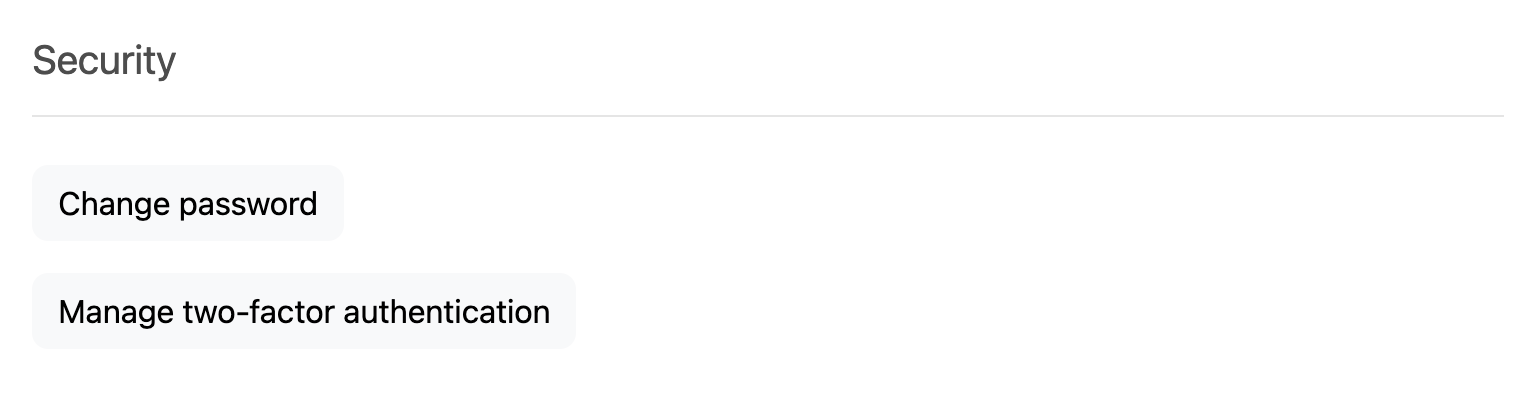
Log in to your EnergyID account on a desktop or laptop. Click your profile icon at the top right and choose Settings. Scroll to Security and click Manage two-factor authentication.
-
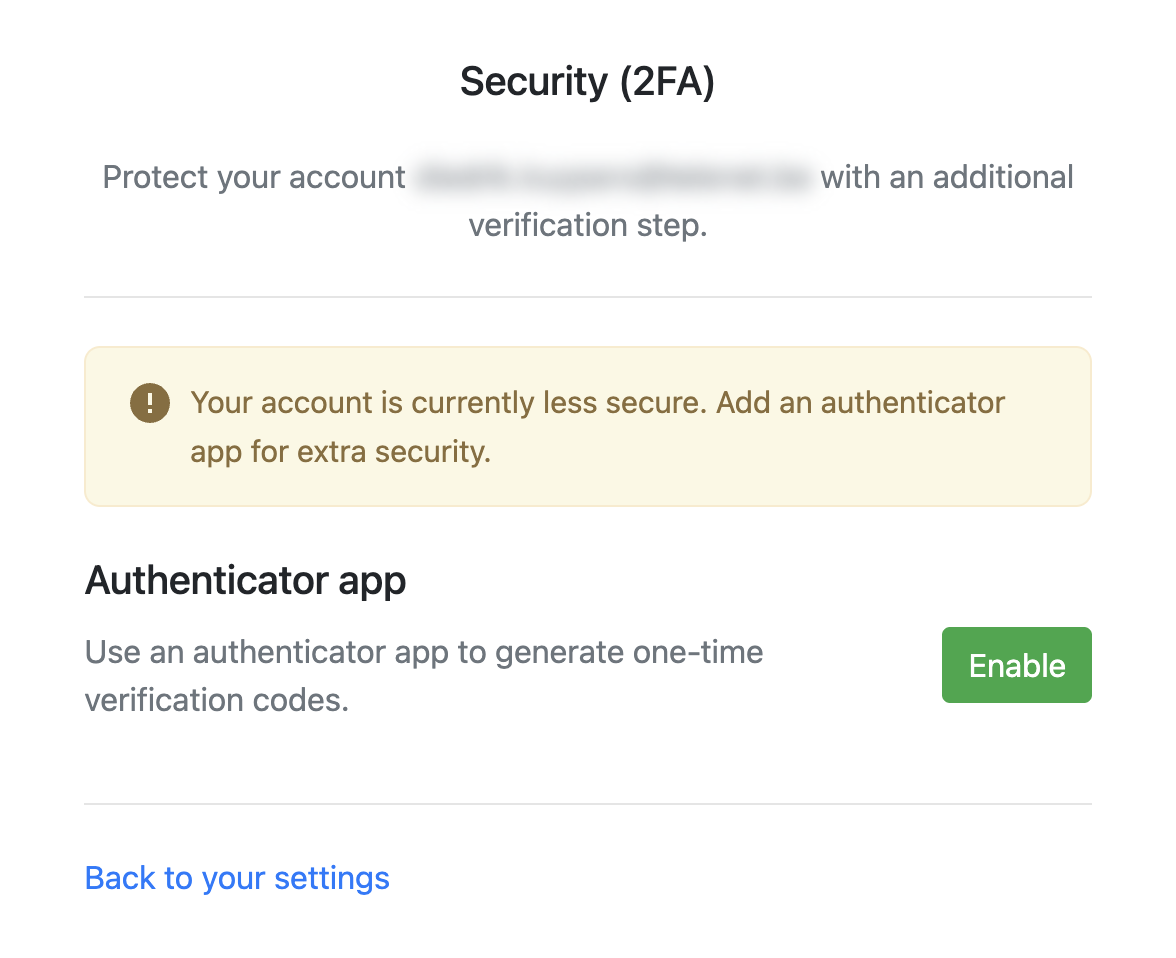
Next to the authenticator app, click Enable.
-
Open the authenticator app on your smartphone, choose to add a new account and scan the QR code on your screen.
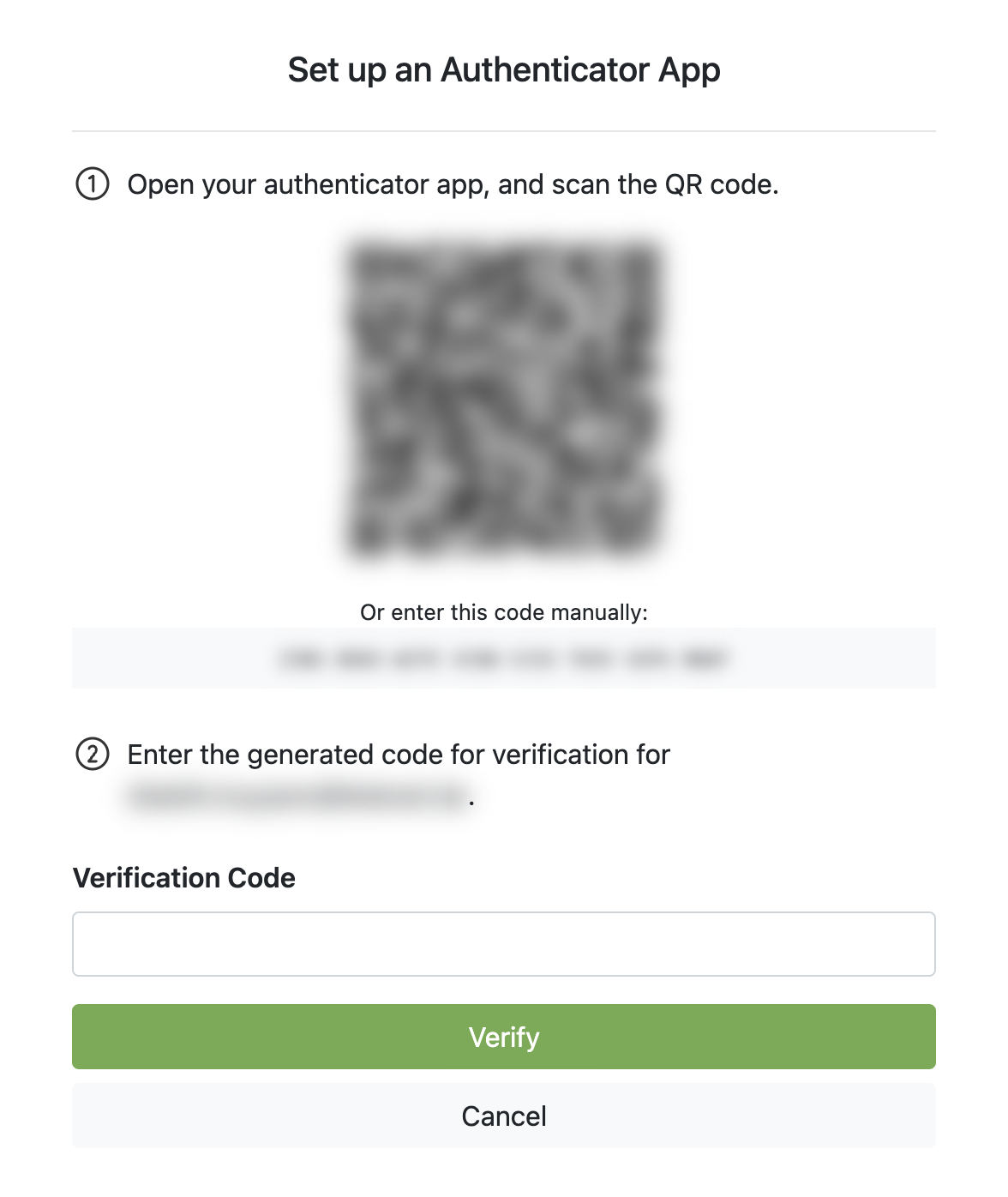
- Once scanned, EnergyID appears in your app with a 6-digit code that changes every 30 seconds. Enter this code in the verification code field on your computer.
- Click Verify. Your account is now protected. From now on, we ask for a new code from your app when you log in.
Can I use MFA by email?
No. We only support TOTP apps, because they are safer than email or text messages.
What if I have a new phone?
Turn off MFA in your settings on the old phone and set it up again on your new phone. No longer have access to your old phone? Then contact our support.
Do I have to enter a verification code every time?
Not on every device. When you enter the code, tick Remember this device for the next 30 days. EnergyID then doesn’t ask for a code on that browser for 30 days. Under Security (2FA), Trusted device shows whether your browser is remembered. Use Forget this device to turn that off again.
Why is MFA required for my account?
Workspace administrators can require MFA for all workspace users, to protect the sensitive data of the organisation. If this applies to you, you can only use EnergyID after you have set up an authenticator app.