Connect your COFY back office
✓ EnergyID for BusinessDo you have your own COFY back office? Then you can link it to your workspace. EnergyID retrieves the available modules and makes them available to the related features in your workspace.
Available from the Standard subscription.
You can link several COFY back offices to the same workspace.
What do you need?
Before you set up the connection, make sure you have the following at hand:
- The discovery URL of your COFY back office’s API.
- An authentication token.
- How the token must be sent: as a query parameter or as an HTTP header.
- The name of the query parameter or HTTP header.
Your COFY back office must be reachable through the API and offer the modules you need.
Where do you find the settings?
- In your workspace, go to Settings.
- Go to the COFY back office section.
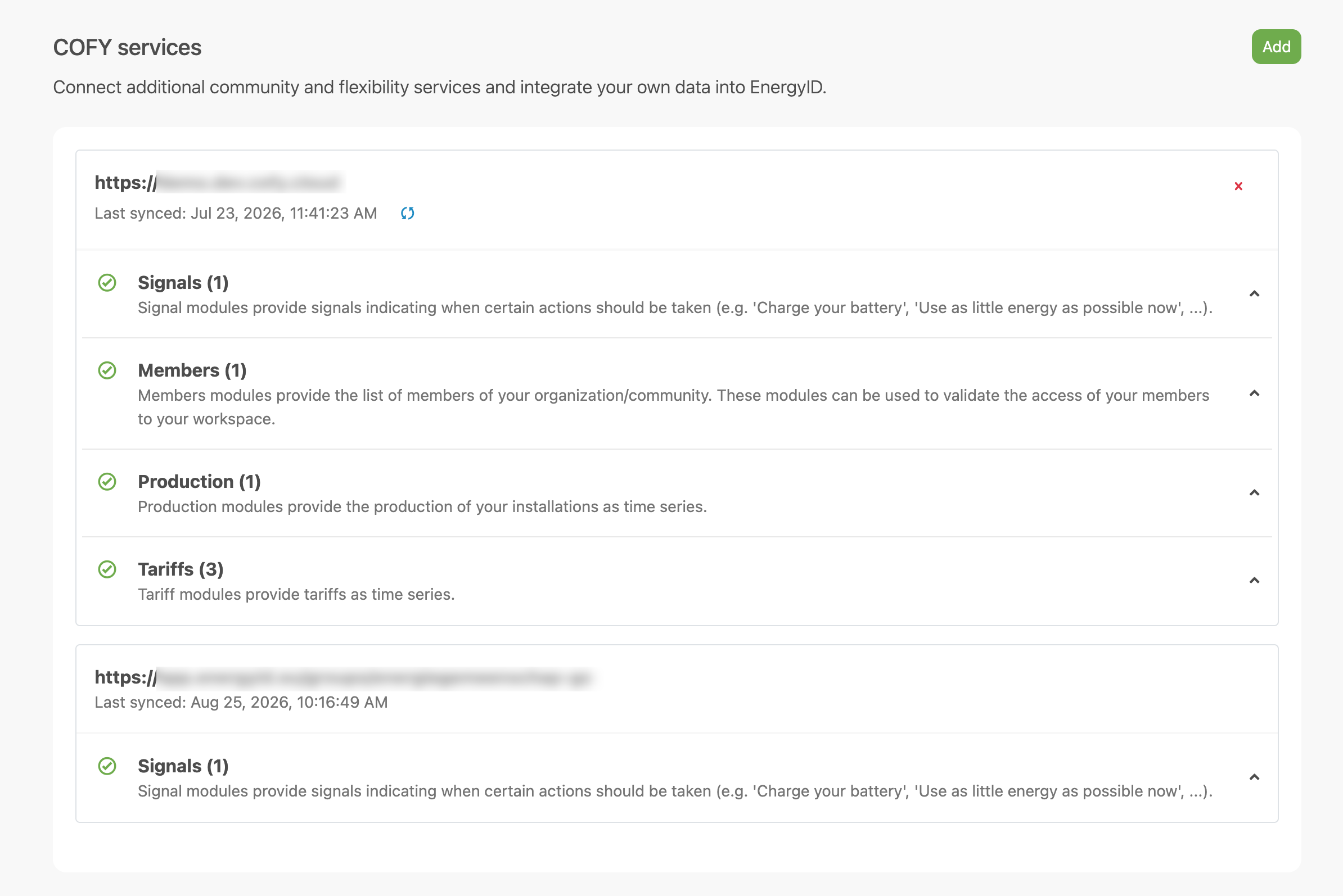
Only workspace administrators can add, synchronise or remove a COFY back office. Other workspace users can view the existing connections and available modules.
Add a COFY back office
- In the COFY back office section, click Add.
- Under Url, enter the discovery URL of your COFY back office’s API.
- Under Send token as, choose how the authentication token must be sent: as a Query parameter or as an HTTP header.
- Enter the Token name: the name of the query parameter or HTTP header.
- Enter the matching Token value.
- Click Add.
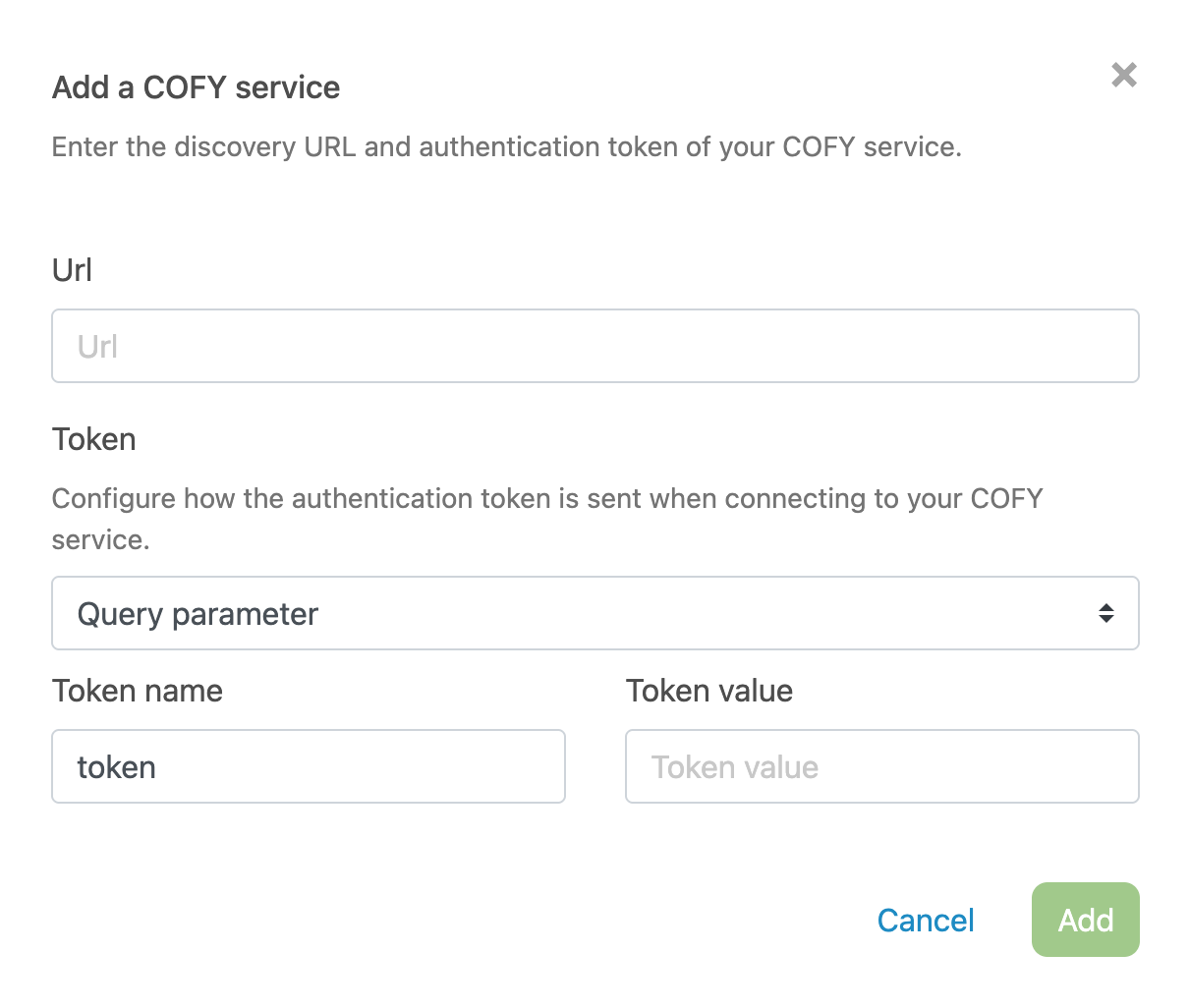
If the details are valid, the connection appears in the list. EnergyID then retrieves the available modules.
You cannot link the same COFY back office twice with the same base URL and the same token.
View available modules
For each connection, you see which modules your COFY back office offers. You can expand each module type to see more information, such as the name, description and version of a module.
Available modules can be, for example, Signals, Members, Tariffs and Production. Which features you can use depends on the modules your COFY back office offers. What is COFY? →
Synchronise a connection
When you change the configuration or available modules in your COFY back office, you can synchronise the connection. EnergyID then retrieves the latest module information again.
- Find the connection in the list.
- Click the synchronisation icon next to Last synced.
After a successful synchronisation, the connection information is updated.
Remove a connection
- Click the red cross next to the connection.
- In the confirmation window, check whether the connection is still used by other features in your workspace.
- Confirm with Remove.
You cannot remove a connection as long as one or more features in your workspace use it. First change the configuration of those features.
After removal, the data from that COFY back office is no longer available in your workspace.
Frequently asked questions
Why can’t I remove a connection?
The connection is still used in at least one feature of your workspace. Open the settings of that feature, change the configuration and try again.
Why don’t I see any modules after linking?
EnergyID tries to retrieve the available modules as soon as you add the connection. Does the list stay empty? Then check:
- Whether the discovery URL is correct.
- Whether the token name and token value are correct.
- Whether the token is sent as a query parameter or HTTP header, as set in your COFY back office.
- Whether your COFY back office actually offers modules.
If you have changed something in your COFY back office in the meantime, you can synchronise the connection manually.
I don’t have a COFY back office yet. What now?
You can host COFY yourself or use COFY Cloud. What is COFY? →
Do you want to use COFY Cloud or do you need help with hosting and setup? Contact sales@energieid.be.